Kpitanea Documentation
Welcome to Kpitanea's Online Documentation
Use the sidebar on the left, or the drop-down menu at the top left on mobile devices, to navigate the documentation.
- Version: 3.7
- Official website: Visit
- Created: 1 October 2026
- Last updated: 5 October 2026
If you need one-to-one support, please write to us at support@kpitanea.com.
Logging In
Open your preferred browser and enter *your-business-name*.kpitanea.com in the address bar.
The login form will appear. Enter the credentials you have been provided with:
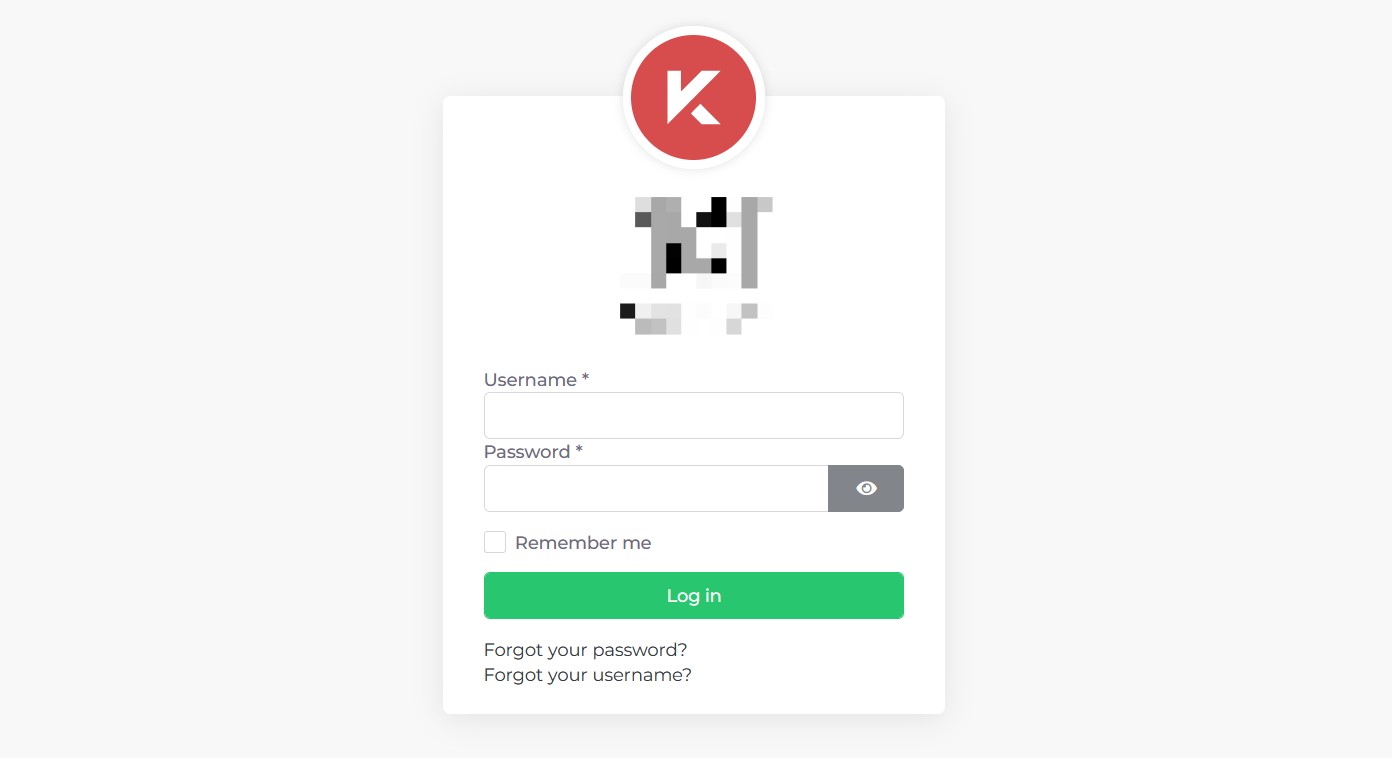
Figure 1: Screenshot of the Kpitanea login form.
Supported Browsers
Kpitanea is a web-based application, so it does not require any installation on your devices. This means you can access it from a laptop, a mobile phone or any other device with a web browser. Kpitanea is fully compatible with the following browsers:
Google Chrome
Mozilla Firefox
Apple Safari
Microsoft Edge
Opera
Dashboard
The Dashboard is the first screen you see when you log in to your Kpitanea instance:
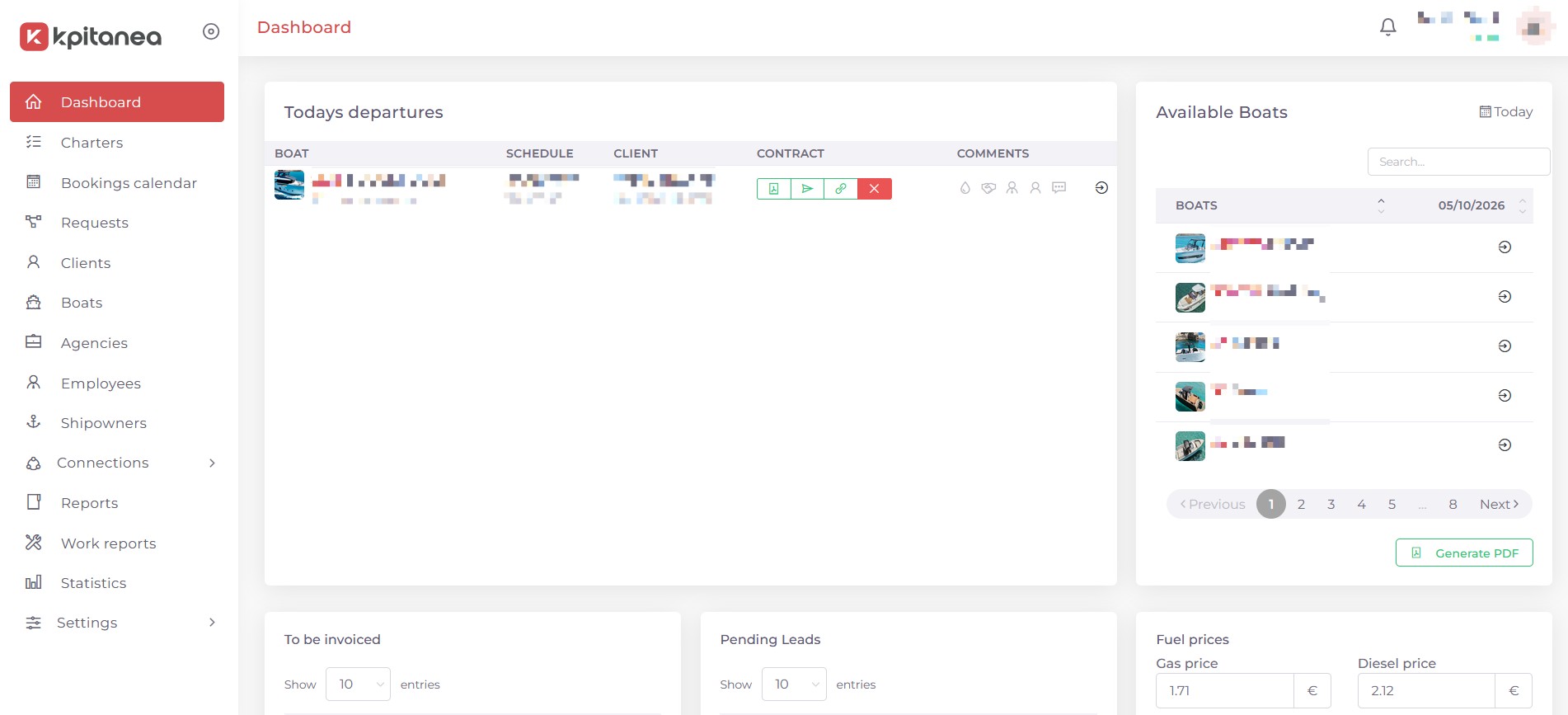
Figure 2: Screenshot of the Kpitanea dashboard.
It provides an overview of your company's activity, from scheduled charters to the boats available for the day, as well as quick reports and shortcuts.
Use the sidebar on the left to access Kpitanea's modules: Charters, Bookings Calendar, Requests, Clients, etc.
To check your notifications, click the bell icon at the top right.
Some sections of the Dashboard may be shown or hidden depending on your role in the instance.
Filtering Features
Almost every module in Kpitanea has a toolbar at the top that allows you to filter entities (Clients, Boats, Charters, etc.) using specific parameters. We recommend making full use of it, as it can be very helpful in your day-to-day operations. Below is an example of the filter toolbar in the Boats module:

Figure 2a: Screenshot of the Kpitanea filtering toolbar.
The (Unpublish) and (Trash) buttons are used to manage several entities at once, selected using the checkboxes:
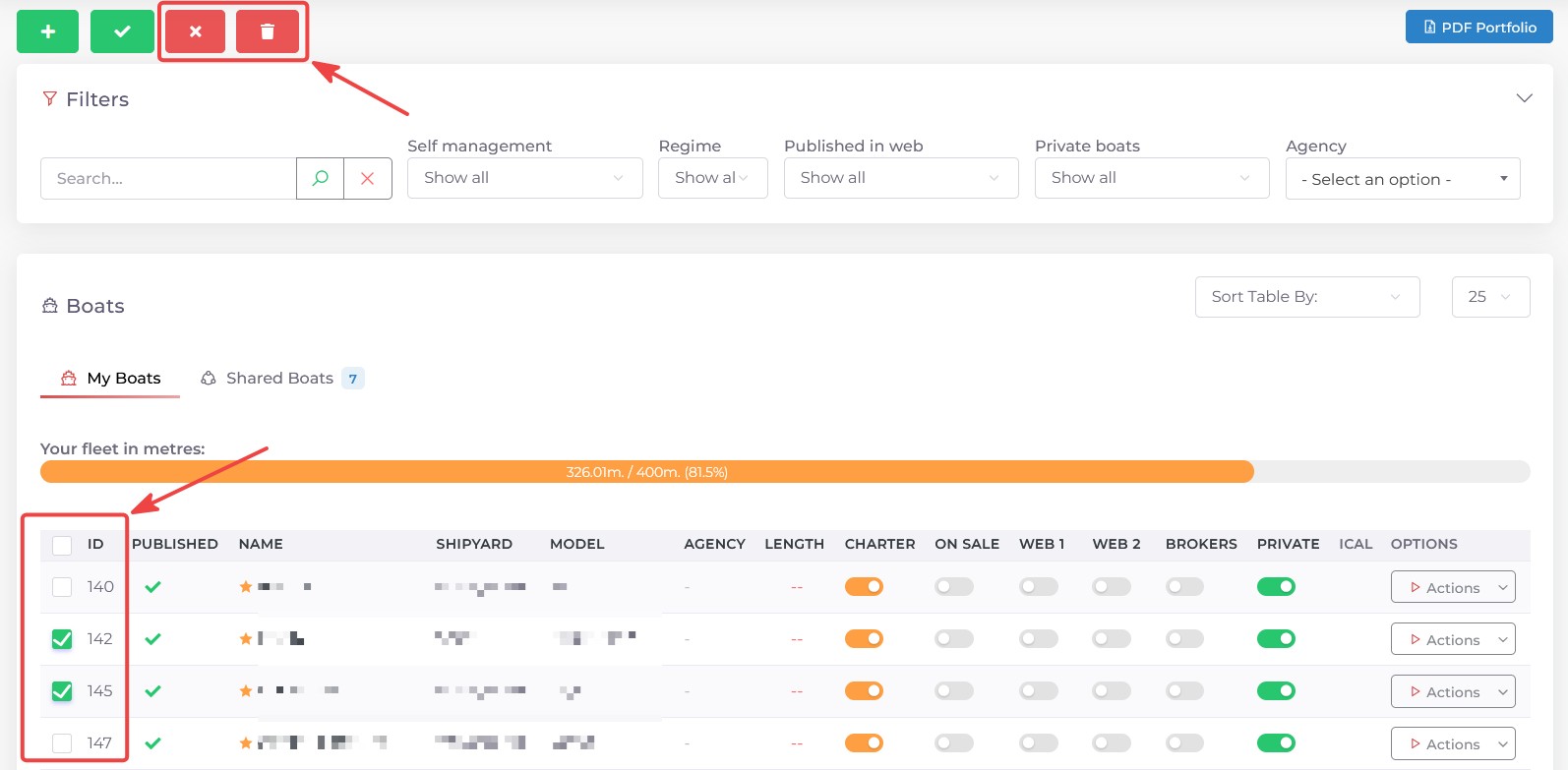
Figure 2b: Screenshot of the Kpitanea bulk actions.
Unpublishing an entity means that it remains in the system but is deactivated. Trashing an entity removes it permanently.
Modules
Find out more about each module of the Kpitanea booking system.
Charters
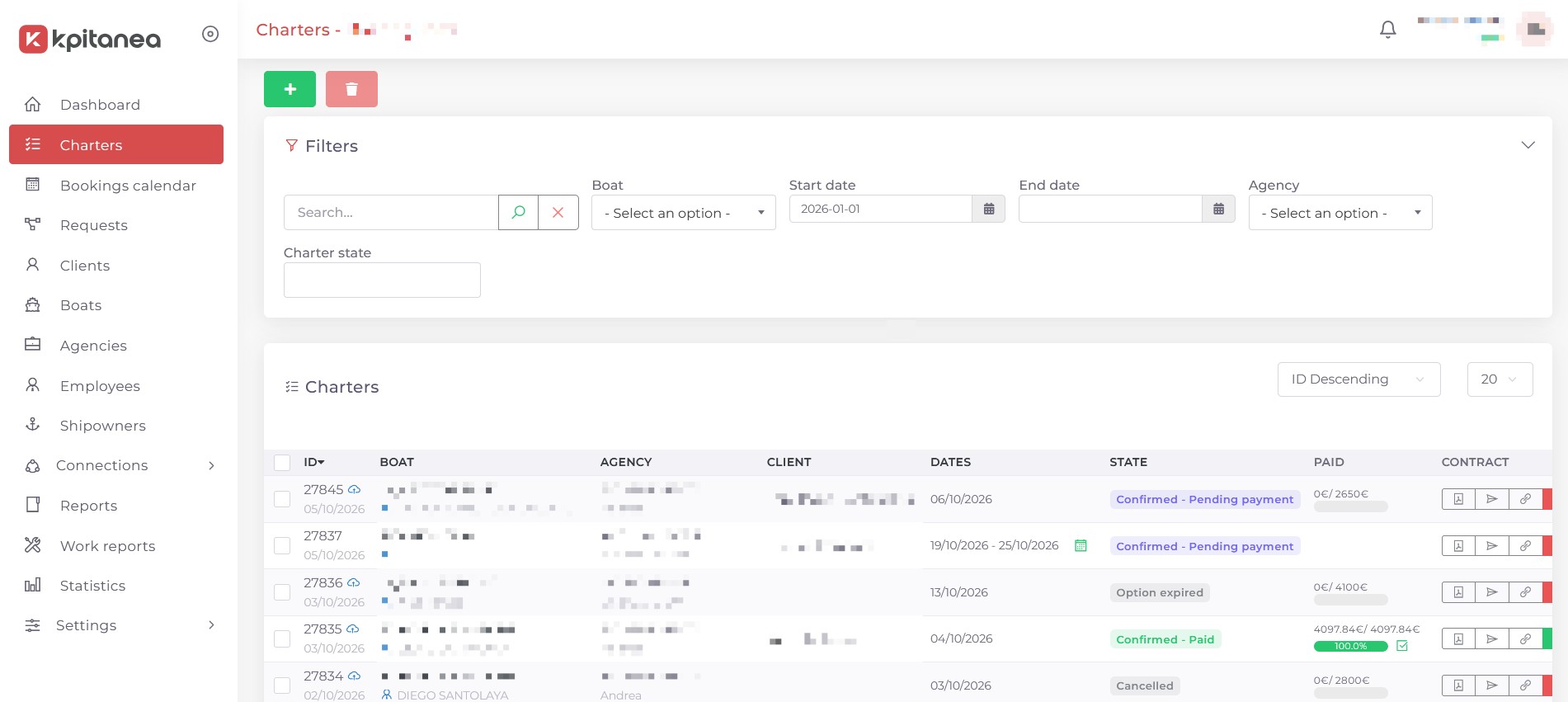
Figure 3: Screenshot of the Kpitanea charters page.
The Charters module is the core of your company's operations. From here, you can add, edit or delete charters, view and filter them, and manage their finances. To edit an existing charter, click its BOAT name; to create a new one, click the + button.
When you create a new charter, a three-step form will appear. First, fill in the Charter mode, dates and boat:
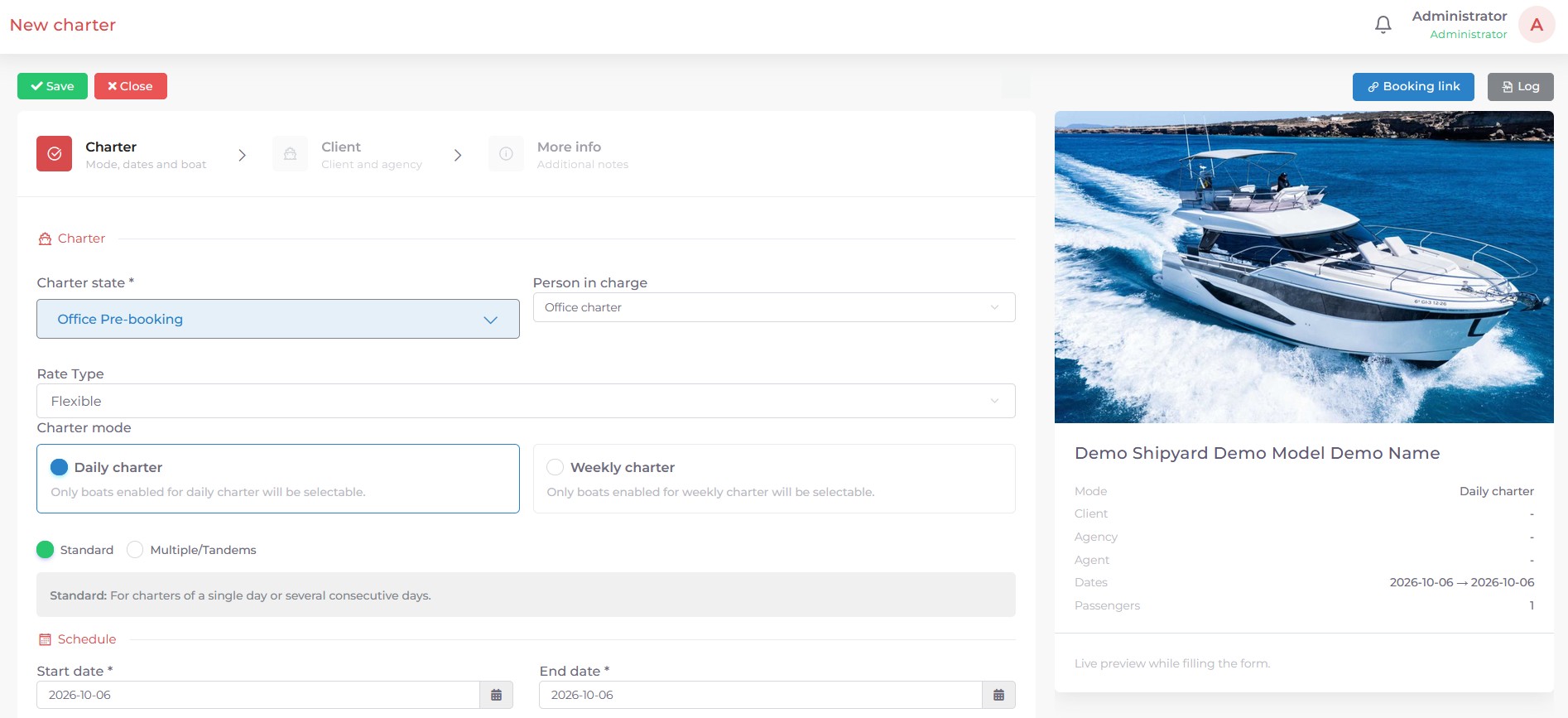
Figure 3a: Screenshot of Kpitanea when creating a charter.
Then, click the Next button and fill in the Client and/or Agency information. You can also create a new client directly from this screen by clicking the button:
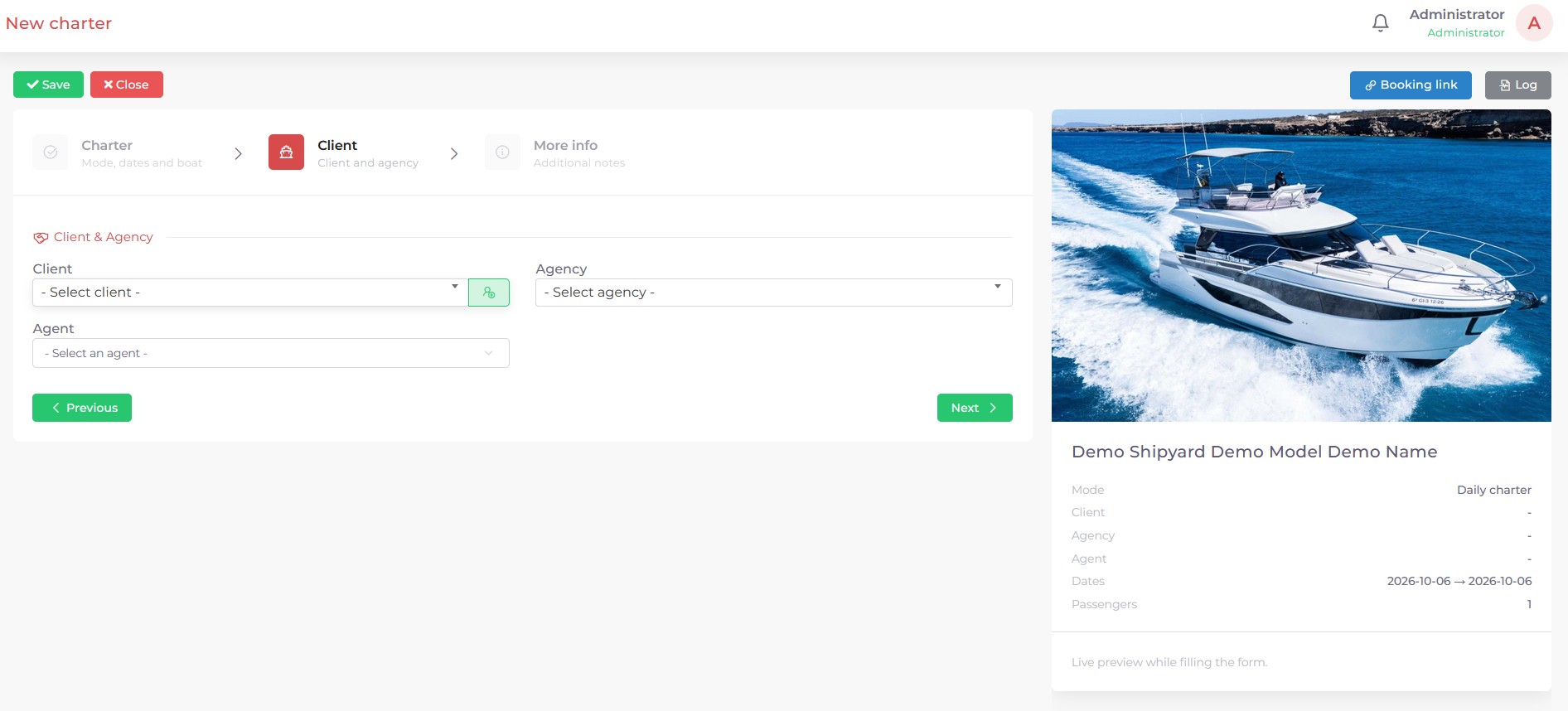
Figure 3b: Screenshot of Kpitanea when filling in the client information.
Click the Next button again and, if necessary, fill in More info about the charter, such as private comments or comments for the agency and the skipper:
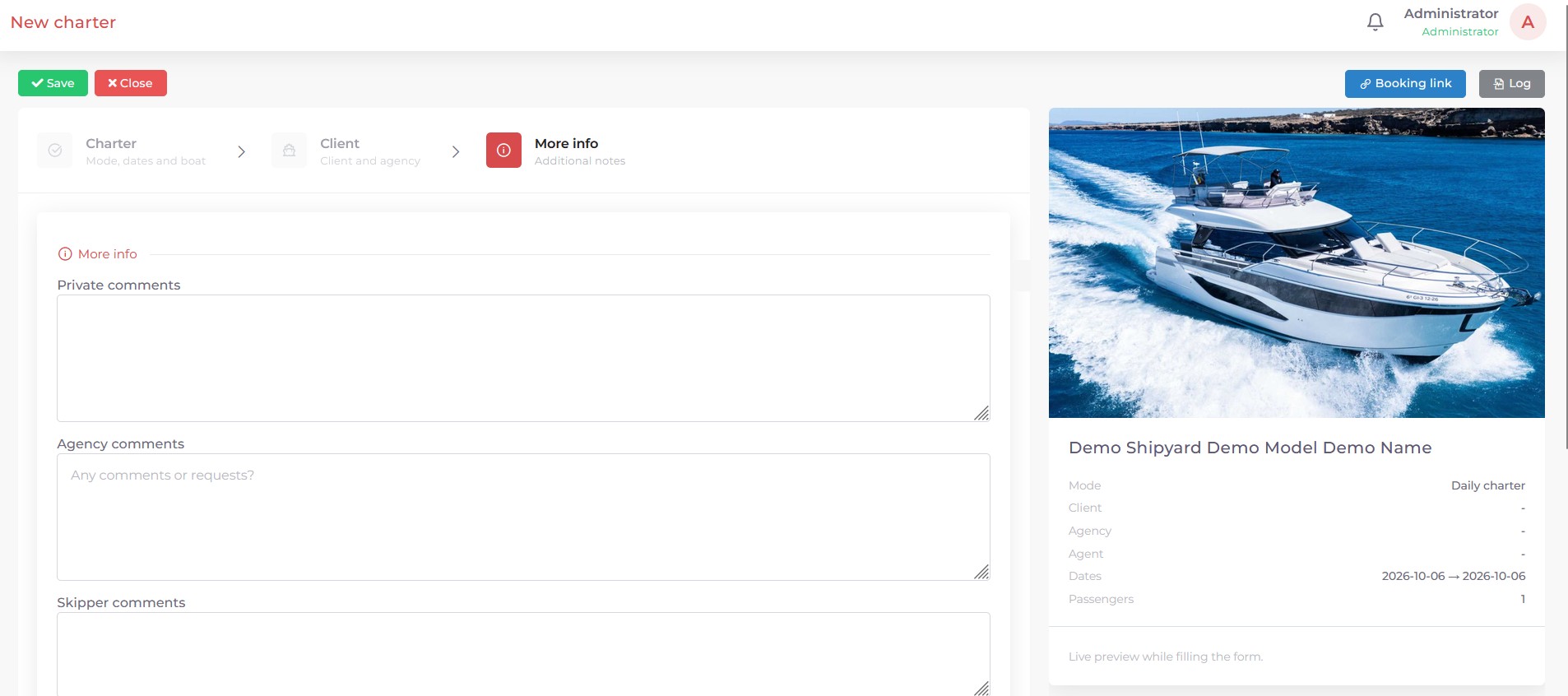
Figure 3c: Screenshot of Kpitanea when adding comments to a charter.
Finally, click the Save button and confirm the operation. Your charter has now been created, and you can view its Info, manage its Finance, add any required Docs, and preview and send the Contract:
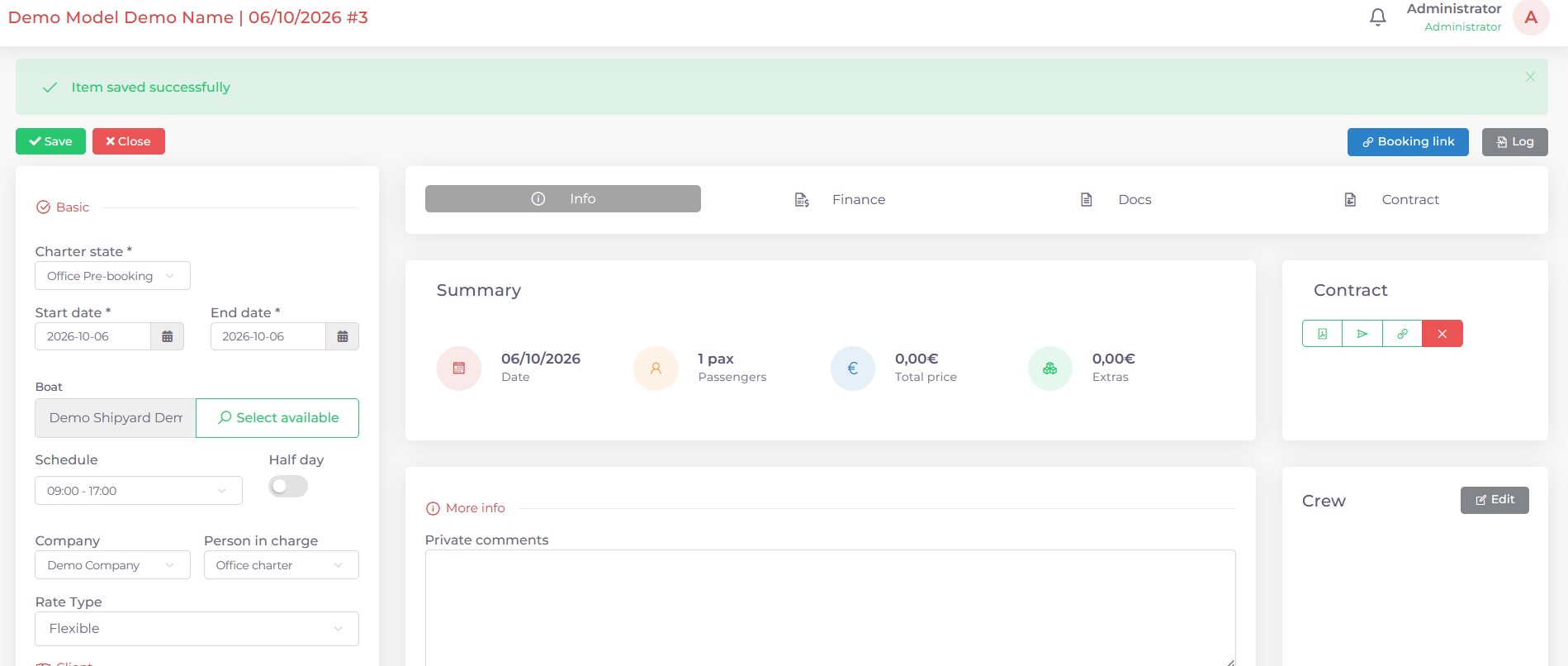
Figure 3d: Screenshot of Kpitanea when viewing a charter.
Once the charter has been successfully created, a Booking link button will appear at the top right of the screen. Click it to copy the charter's booking link to your clipboard.
A Log button will also appear. Click it to view all the changes made to the charter since it was created. The Info, Finance, Docs and Contract tabs are shown above the summary. Find out more about each section of the charter editing page below:
From this tab, you can modify the following charter parameters:
- Charter state (confirmed, cancelled, etc.)
- Start and end dates
- Boat
- Schedule
- Half-day option
- Company
- Person in charge
- Rate type
- Client
- Skipper client option
- Agency
- Agent
- Passengers
- Crew
- Comments
Here you can see the complete financial history of the charter. You can add payments, expenses, discounts, extras and fuel before check-out, and create payment links on the go.
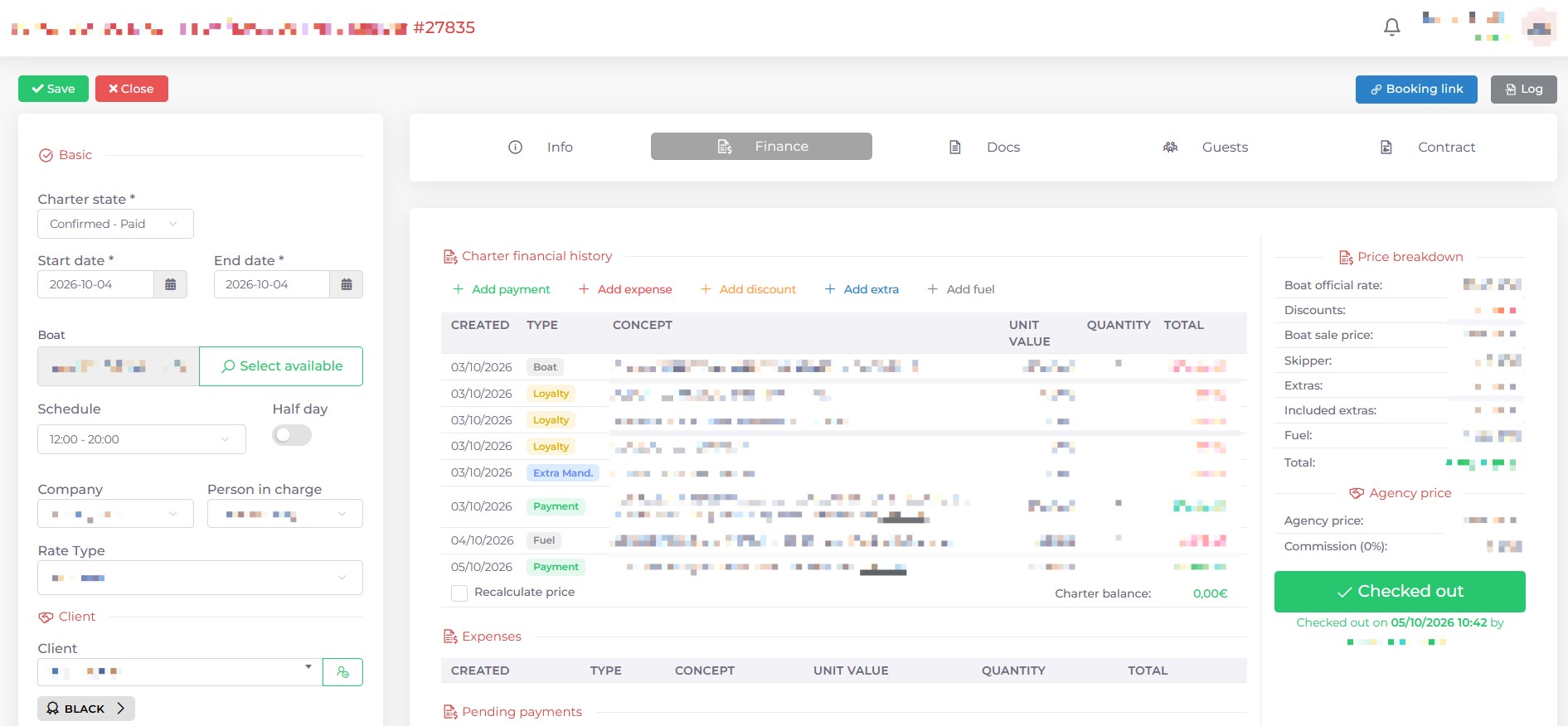
Figure 3e: Screenshot of the Finance tab of a charter in Kpitanea.
If you activate the Holded add-on, you can connect Kpitanea to your Holded account and automatically generate pro forma invoices and final invoices.
In the Docs tab, you can upload any documents required for the charter contract. Simply drag and drop your PDF files and add an optional Description. If you need to upload more than one document, click the + button to add a new line and drag and drop the additional file(s).
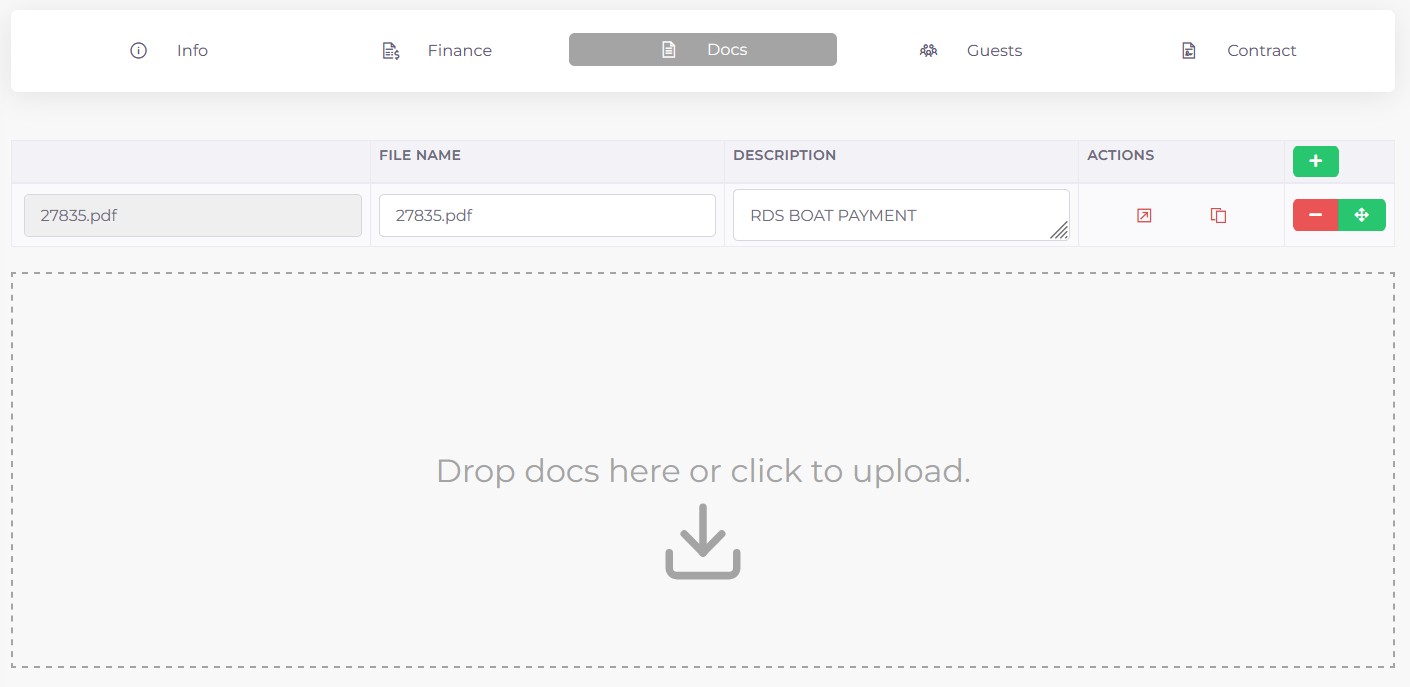
Figure 3f: Screenshot of the Docs tab of a charter in Kpitanea.
On this screen, you can preview the final charter Contract and manually add any specific conditions (in English and Spanish). As in other parts of this section, you will also find shortcuts to preview the signature form that the end client will receive.
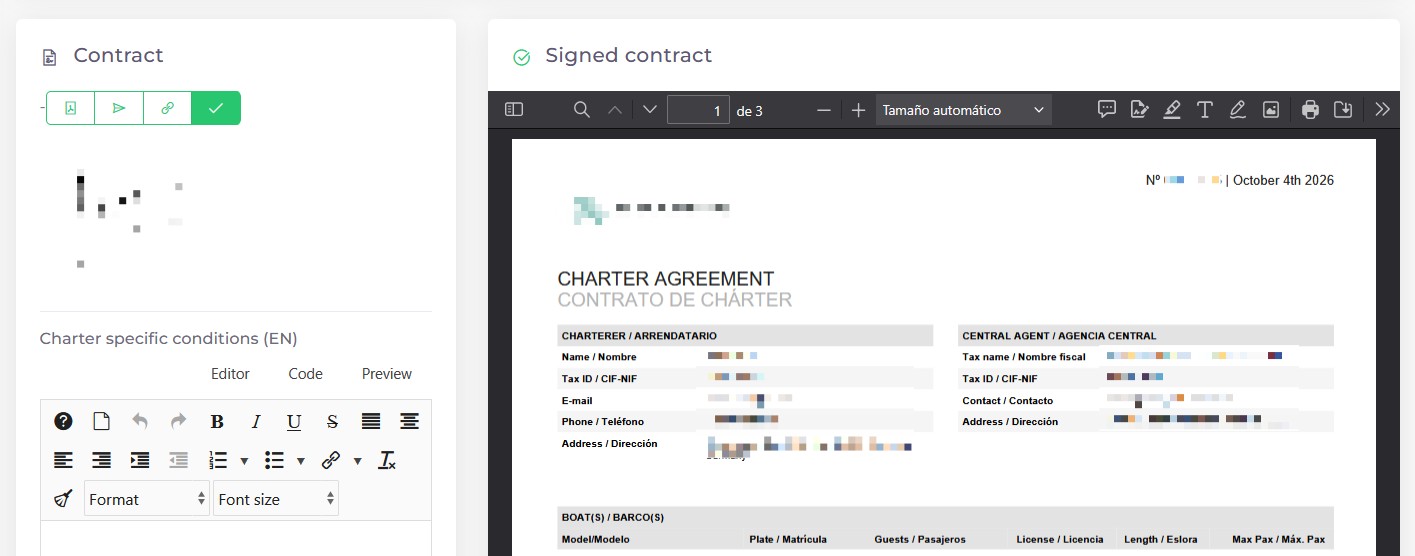
Figure 3g: Screenshot of the Contract tab of a charter in Kpitanea.
Bookings Calendar
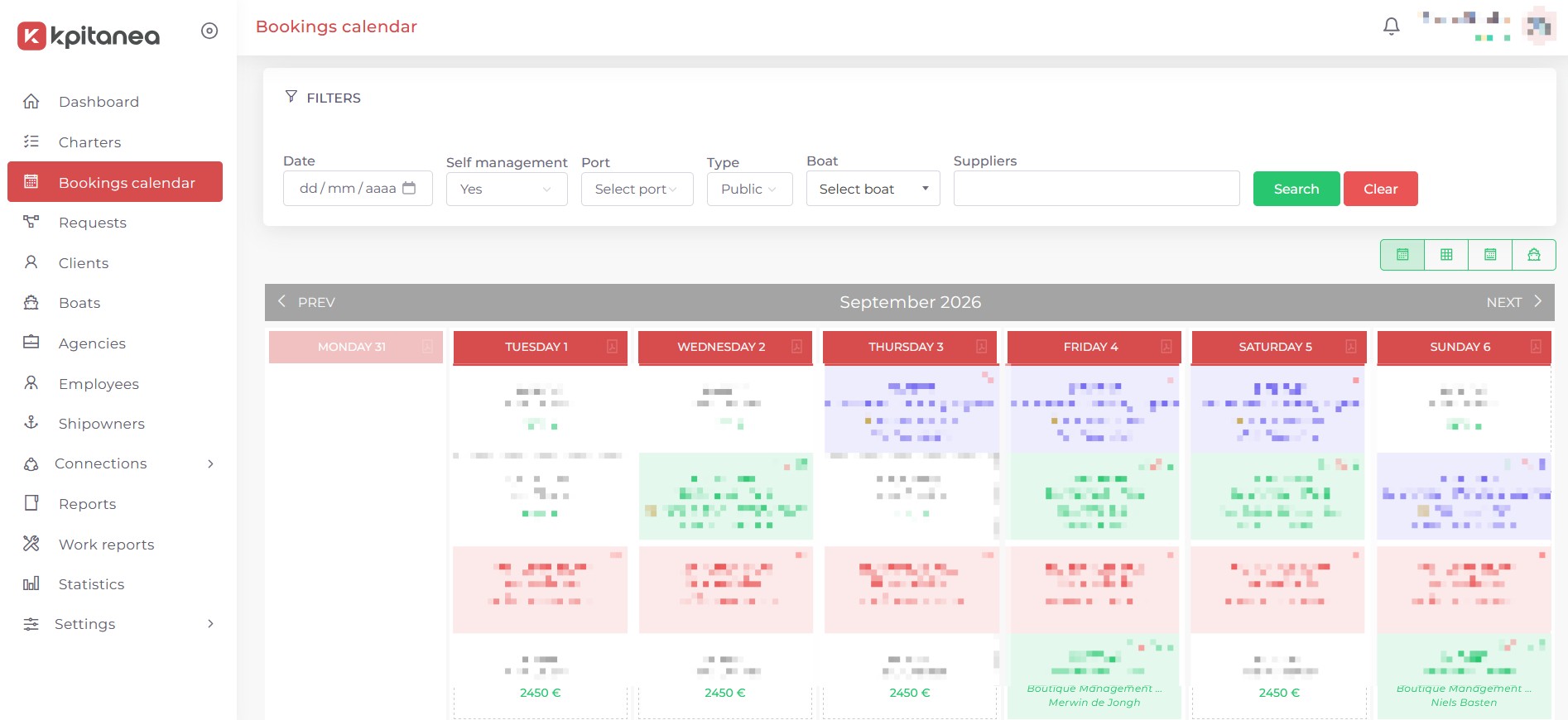
Figure 4: Screenshot of the Kpitanea bookings calendar page.
The Bookings Calendar module lets you view your boats' availability and bookings in four calendar views: Monthly (Full), Monthly (Mini), Weekly and Fleet. Each view has its own shortcuts to make it easier to manage bookings, check for free slots and send custom proposals based on your fleet's availability.
This view shows a full month in a grid layout. Use the PREV 1 and NEXT 2 buttons to move between months, and scroll down the page to see the following weeks. You can quickly create a PDF file listing your available boats for a given day by clicking the icon 3. Clicking a day with confirmed charters takes you to that charter, and the button 4 will change dynamically (see the tooltips) once the booking contract has been signed and the client details have been filled in. Clicking a day with availability takes you to the "New charter" page for that boat 5.
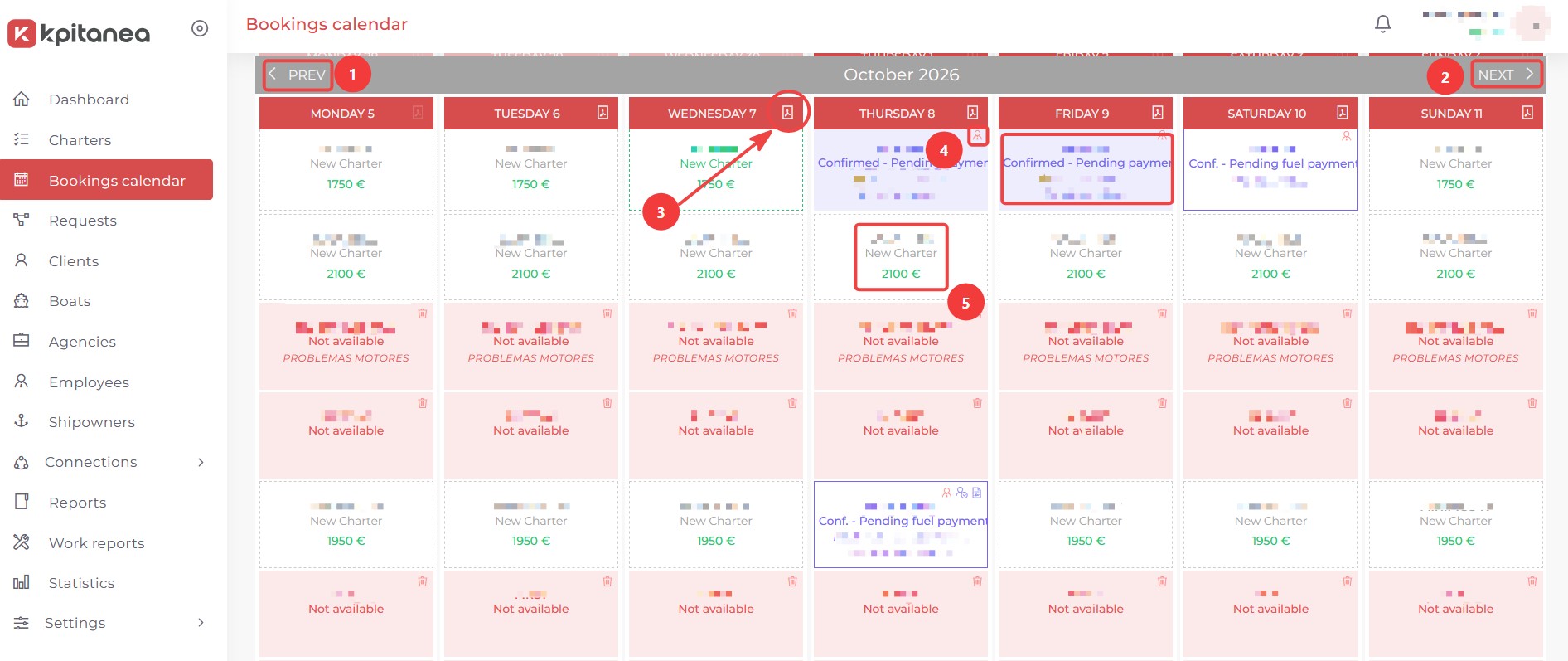
Figure 4a: Screenshot of the full monthly calendar view in Kpitanea.
The Mini view is a simplified monthly view that shows daily slots for each boat. Scroll horizontally to see the rest of the month, or adjust your browser's zoom level, as Kpitanea is fully responsive.
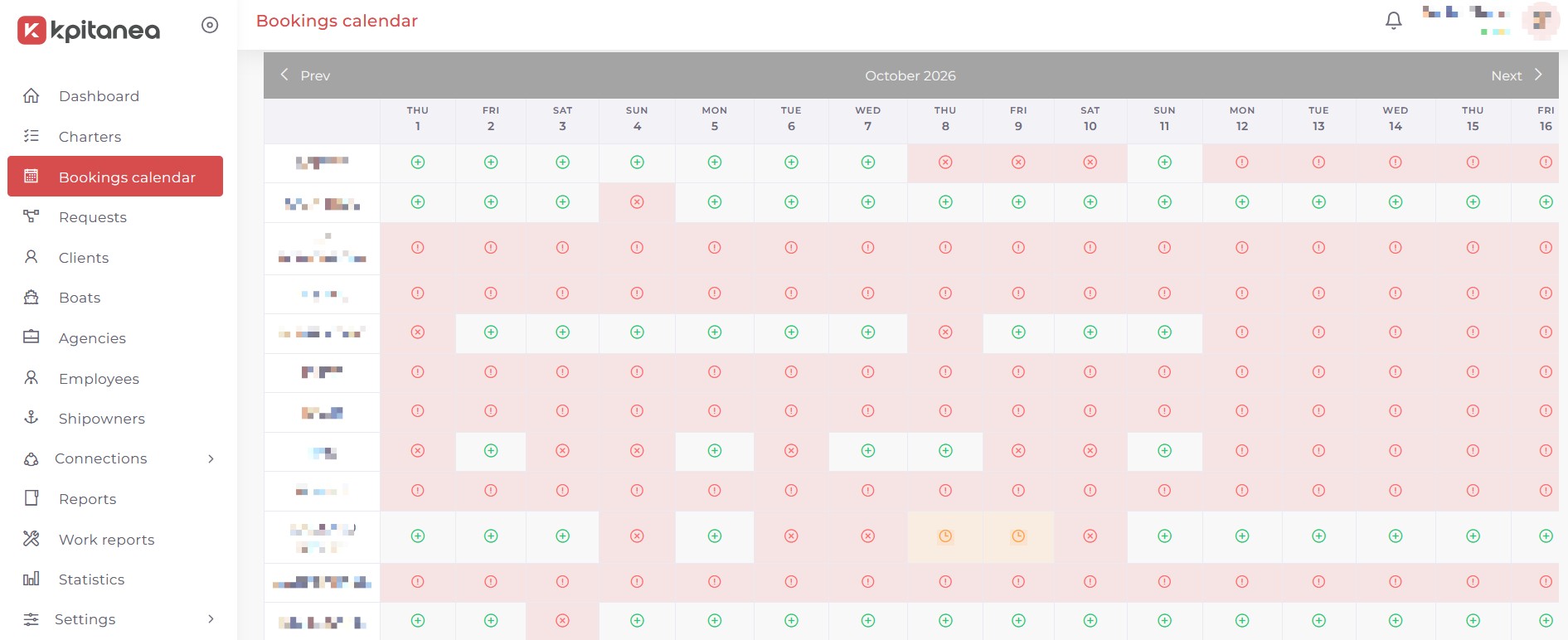
Figure 4b: Screenshot of the Mini calendar view in Kpitanea.
The Weekly view is specifically designed for boats that can be booked by the week. For this reason, only the boats in your fleet that are available for weekly charters are shown. You can easily create a New Booking or Block a Week by clicking the buttons that appear on available dates.
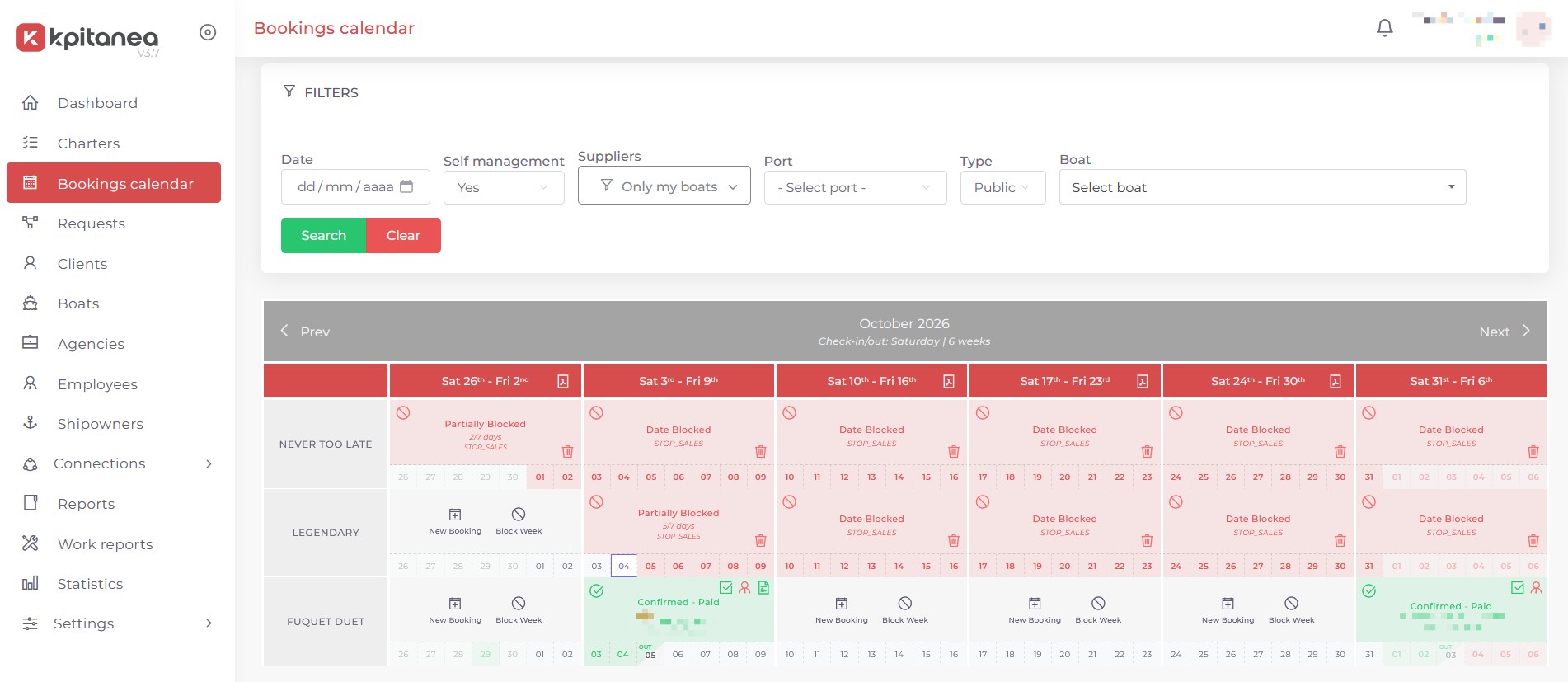
Figure 4c: Screenshot of the Weekly calendar view in Kpitanea.
The Fleet view offers a highly visual way to check your boats' availability. Each vessel is shown as a card with its main photo and details, alongside a colour-coded monthly calendar. You will also find shortcuts to download PDFs, copy iCal links and create a new booking on the go.
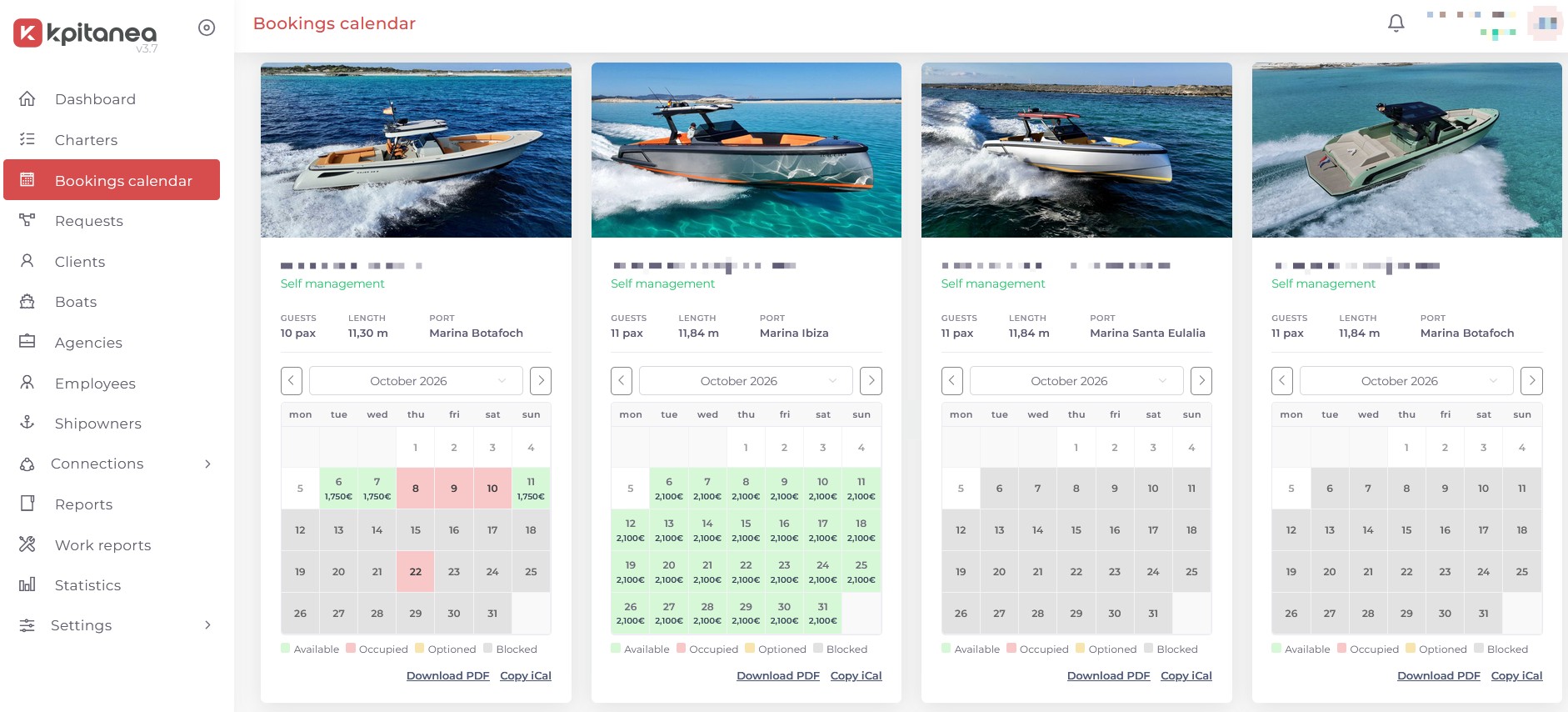
Figure 4d: Screenshot of the Fleet calendar view in Kpitanea.
Bookings and charters are the same thing. In Kpitanea, we use one term or the other depending on the module you are working in.
Requests
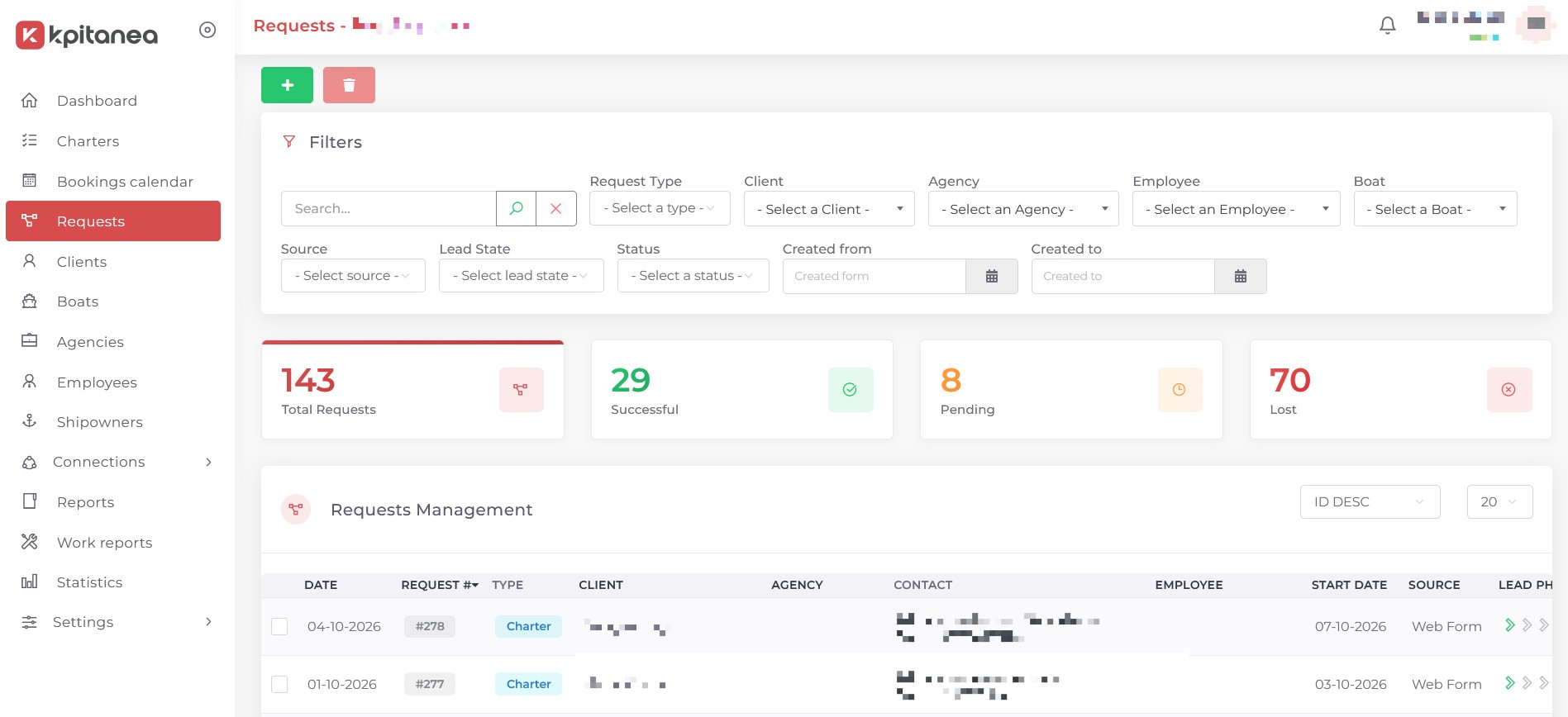
Figure 5: Screenshot of the Kpitanea requests page.
The Requests module is an essential part of our CRM features. It allows you to manage your leads without leaving the application, as well as create and send custom proposals to potential clients.
To create a new request, simply click the + button and fill in the following information:
- Request type (Sell or Charter)
- Client (select an existing one or create a new one)
- Agency (if any)
- Employee (if any)
- Boat type (optional)
- Number of adults and children
- Maximum budget and dates
- Lead phase (Lead, Contact, Proposal)
- Source (WhatsApp, email, etc.)
- Status (Successful, Pending, etc.)
- Internal comments (optional)
Once the request has been successfully created, a screen will appear showing the data you entered, followed by the Charter / Sell Proposal and Request History blocks.
Click the Select Boats button to add the boats you want to include in the proposal. You can Lock the Boat(s) until a specified date and even set a Custom Price for the proposal.
On the right-hand side of the screen, the Request History block shows the latest updates to the proposal:
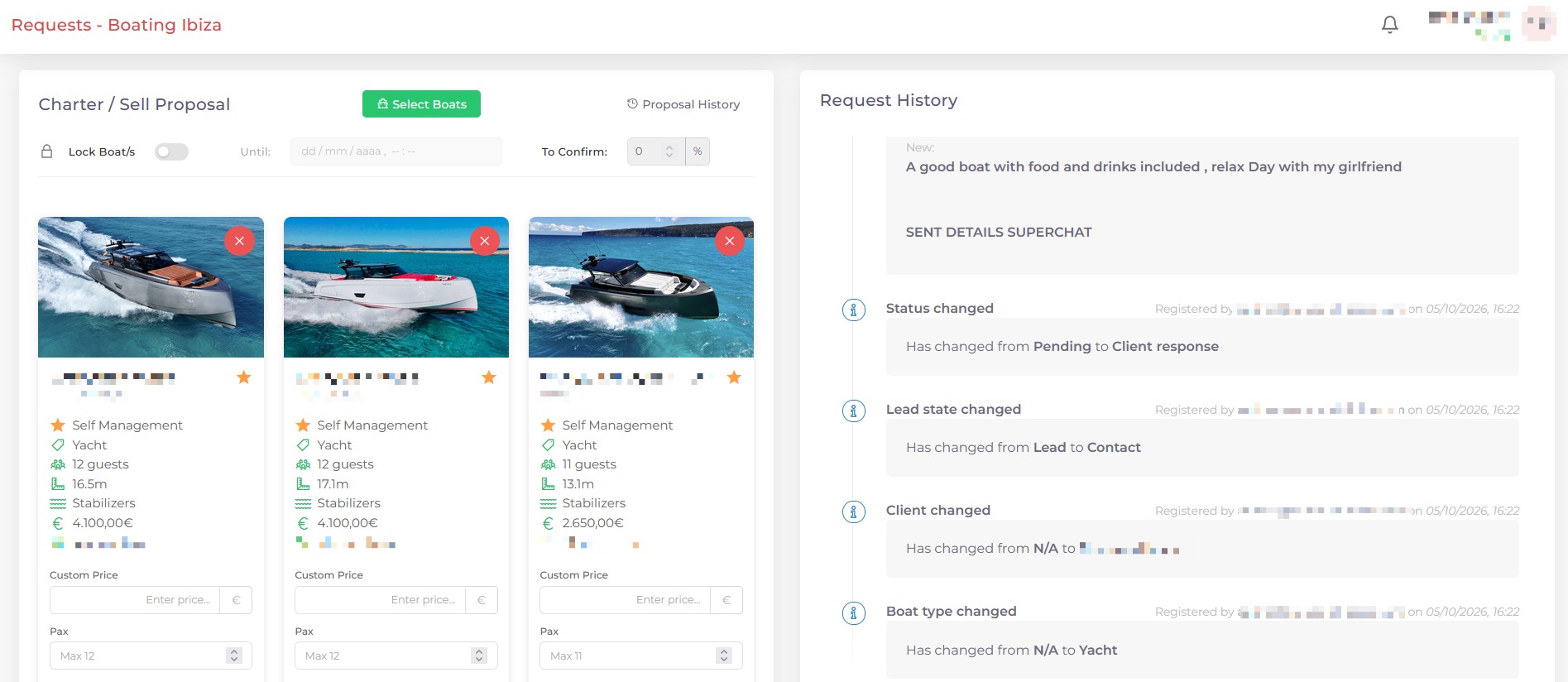
Figure 5a: Screenshot of the Requests feature in Kpitanea.
When you are ready to preview your proposal, click the Submit button at the top left of the page. Then click the Copy Proposal Link button and paste the link into your browser to see a preview, as in this example:
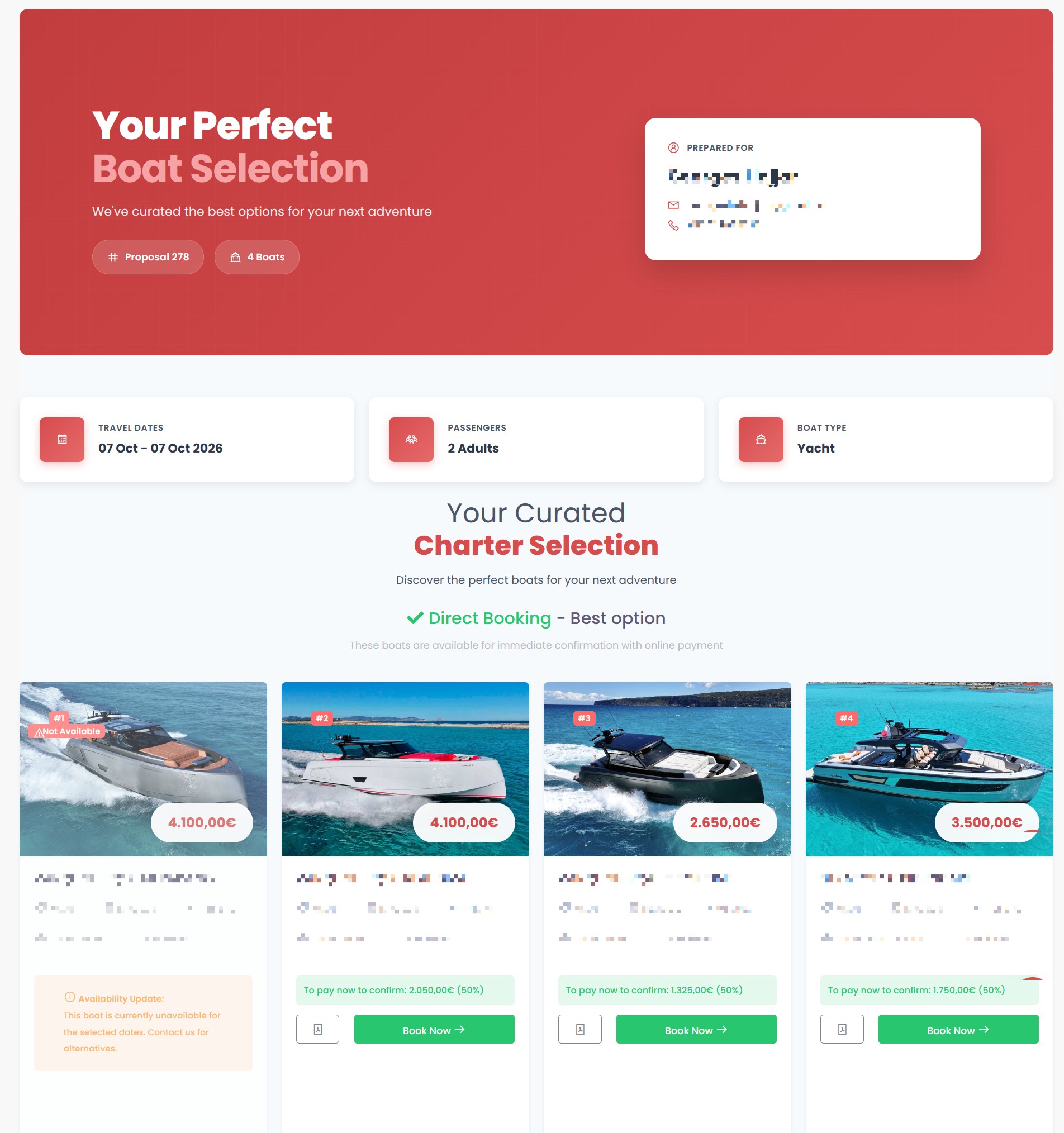
Figure 5b: Screenshot of a custom boat proposal in Kpitanea.
What you see is exactly what your client will see, and they can even book directly from the proposal. To send it, click the Send Proposal button. A confirmation dialogue box will appear, allowing you to send the proposal via WhatsApp or email.
Clients
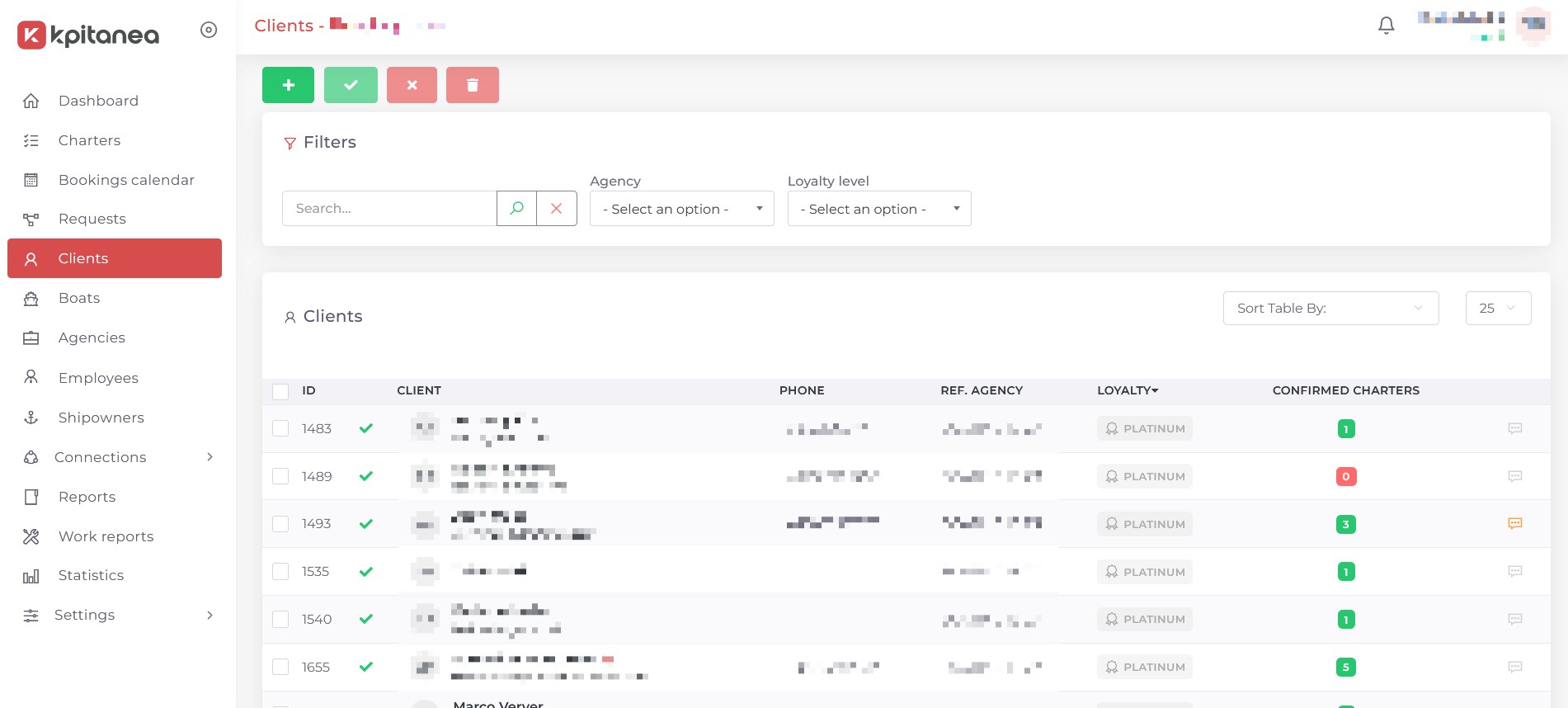
Figure 6: Screenshot of the Kpitanea clients page.
The Clients module is your customer directory. To add a new client, click the + button and fill in their contact details, including their Loyalty level with your company 1.
Once you have saved the client by clicking the Submit button, you will be able to add them to your charters, and a Charter History tab 2 will appear. From then on, this tab will show all the bookings made by the client:
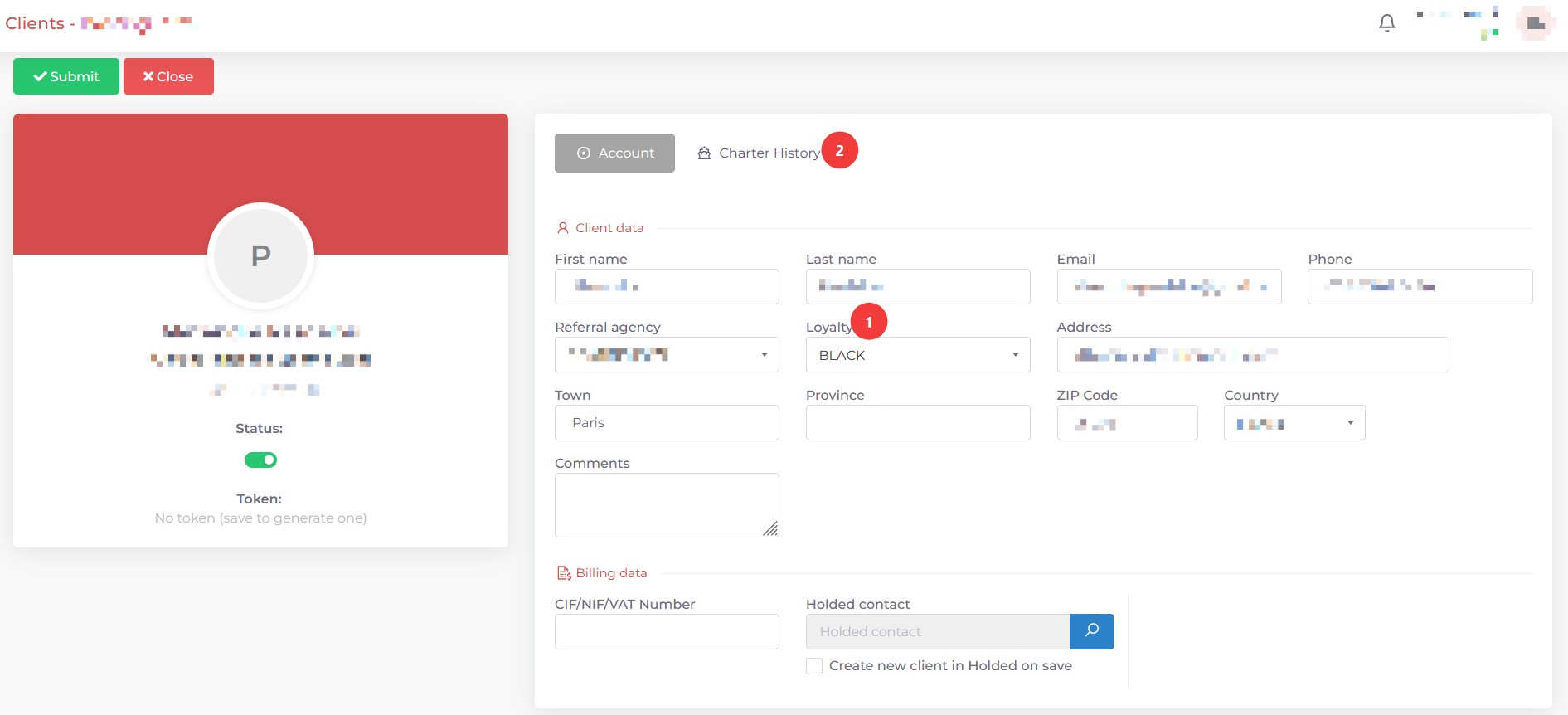
Figure 6a: Screenshot of the client creation screen in Kpitanea.
If you activate the Holded add-on, you can connect Kpitanea to your Holded account and automatically synchronise your clients' information.
Boats
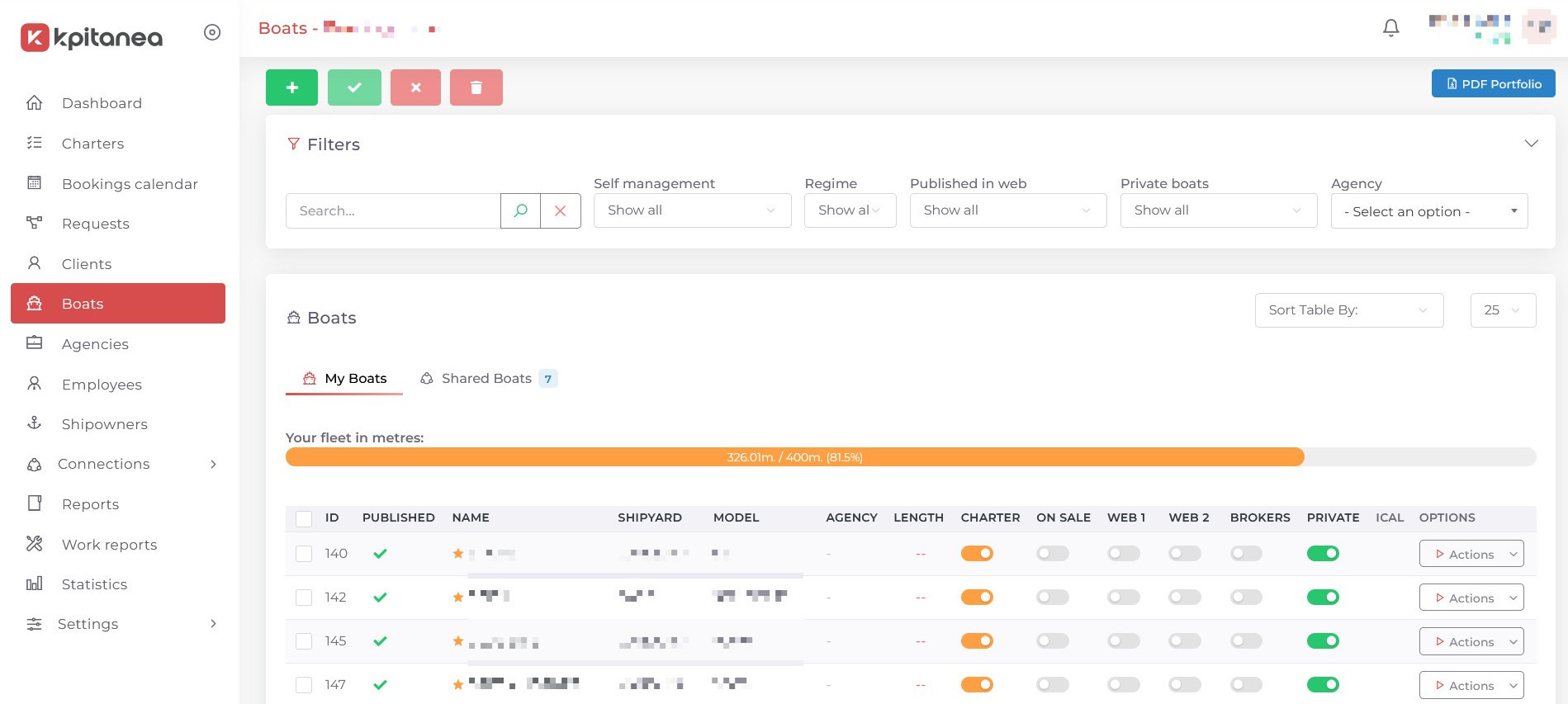
Figure 7: Screenshot of the Kpitanea boats page.
The Boats module lets you manage your entire fleet (both your own boats and those shared with you) quickly and easily. It is arguably the most important module in Kpitanea, as each boat you create defines not only its description and photos, but also its availability, pricing and the media used in the PDFs you can generate on the platform.
When you first create a boat, only the vessel's Basic information and Description are required. Fill in all the required fields (see below) and click the Save button:
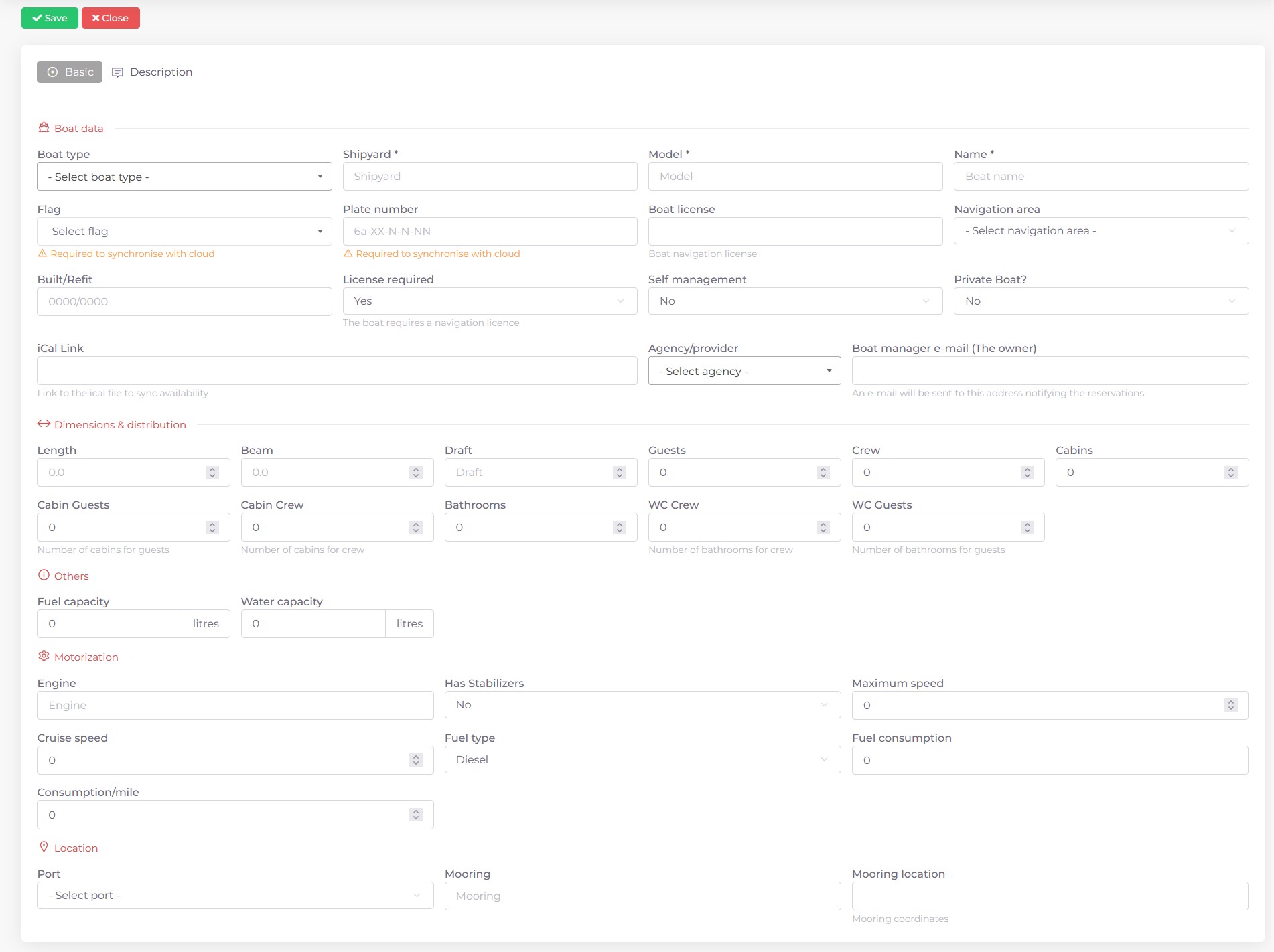
Figure 7a: Screenshot of the boat creation screen in Kpitanea.
Once you have successfully created a new boat, the editing screen will appear, containing the Pricing, Media, Crew, Extras, Equipment and Date Blocking tabs 1. In the sidebar on the left, you will also find the PDF generation button 2, which lets you create PDF files for your clients and agencies on the go.
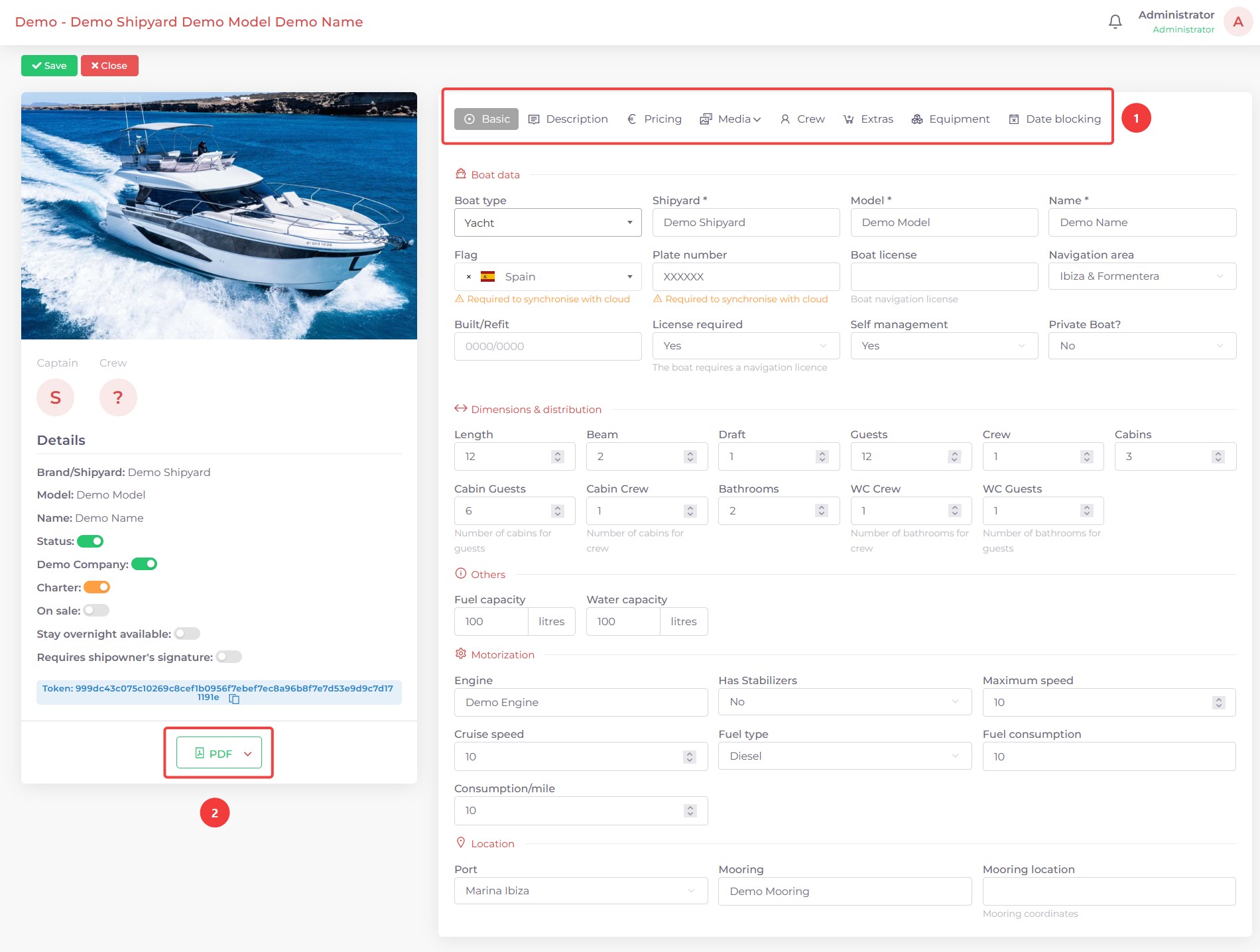
Figure 7b: Screenshot of the boat editing page in Kpitanea.
The Pricing tab lets you set the rates for your charters and configure a range of options:
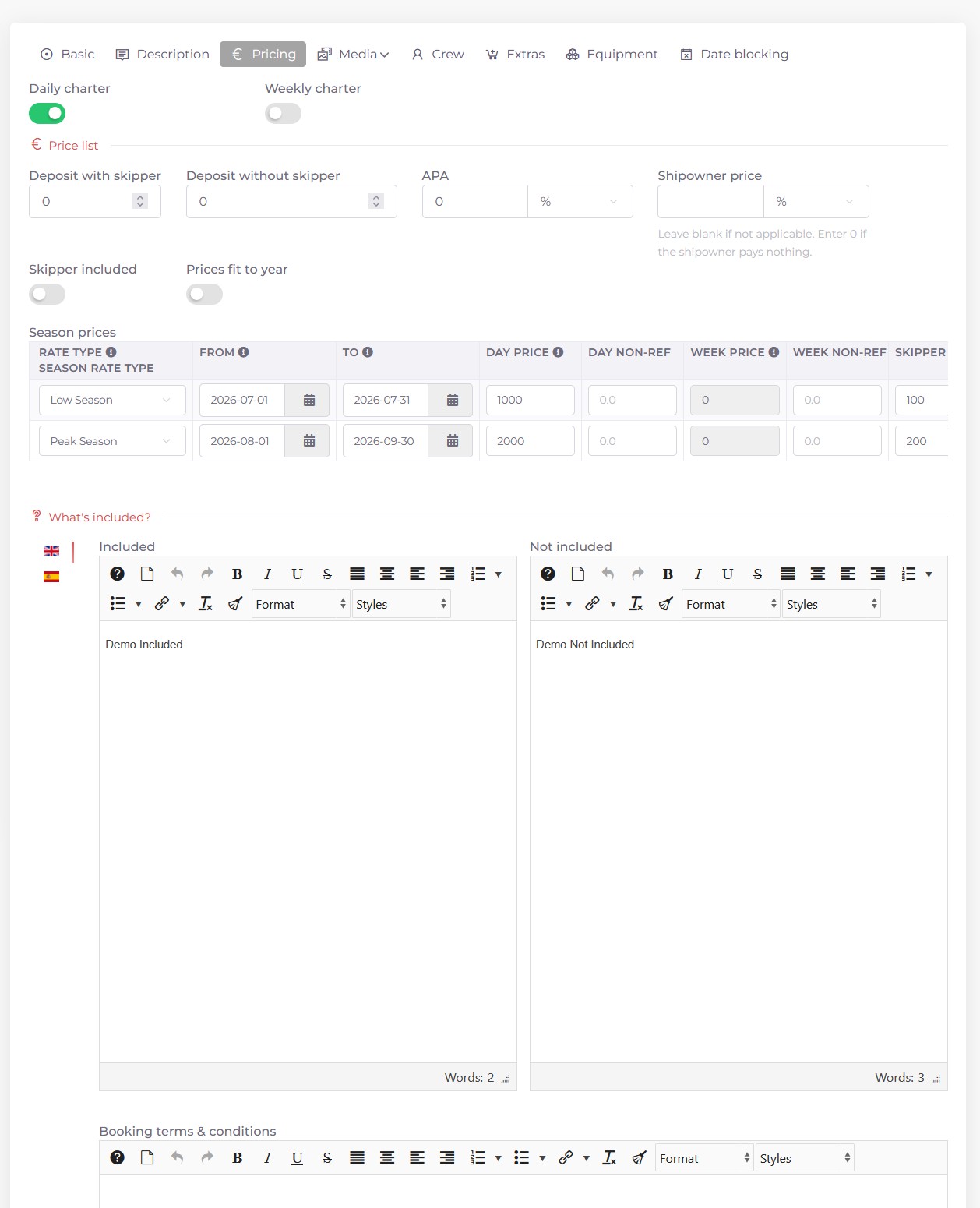
Figure 7c: Screenshot of the Pricing tab when editing a boat in Kpitanea.
The Media tab lets you upload media and documents for your boats. The Gallery subsection allows you to drag and drop your photos, rearrange them as you wish, crop them, and include them in (or exclude them from) generated PDFs:
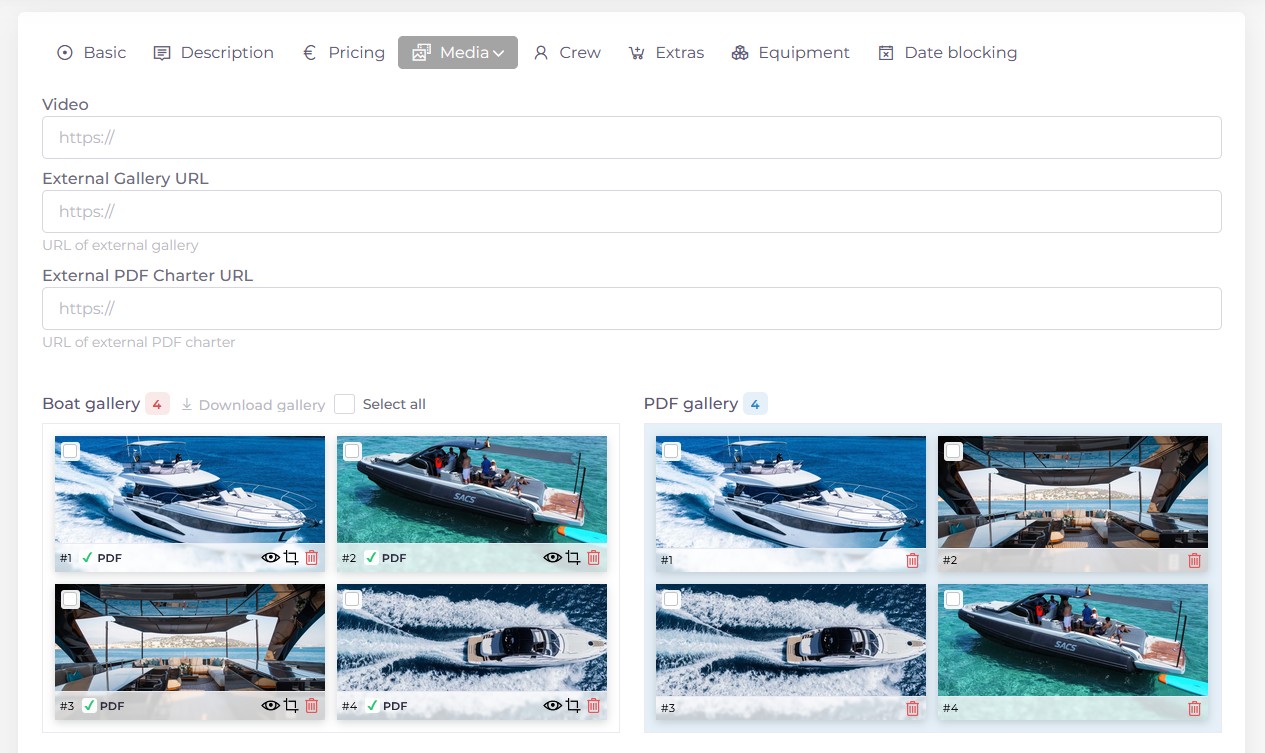
Figure 7d: Screenshot of the Media tab when editing a boat in Kpitanea.
The Documentation subsection is useful for storing important documents and files, and also supports drag and drop.
In the Crew tab, you can set default Employees for the Skipper and Crew roles of the boat, so you do not have to assign them manually when creating a charter. Ticking the "Update crew in future charters" box will also apply these roles to charters that have already been created. Remember to click Save afterwards.
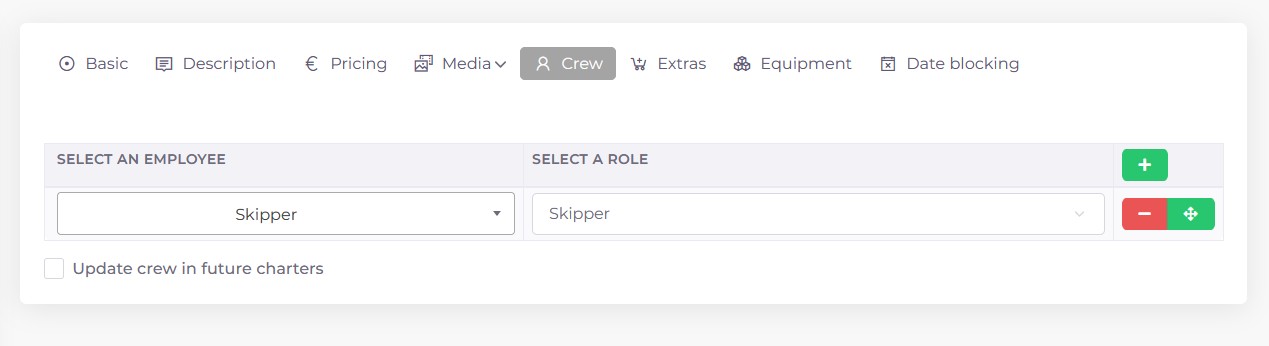
Figure 7e: Screenshot of the Crew tab when editing a boat in Kpitanea.
Assign Extras and Equipment in the corresponding tabs, bearing in mind that both must have already been created.
Finally, in the Date blocking tab, you can make your boats unavailable for days, weeks, months, etc. Simply select a start date, an end date and a reason:
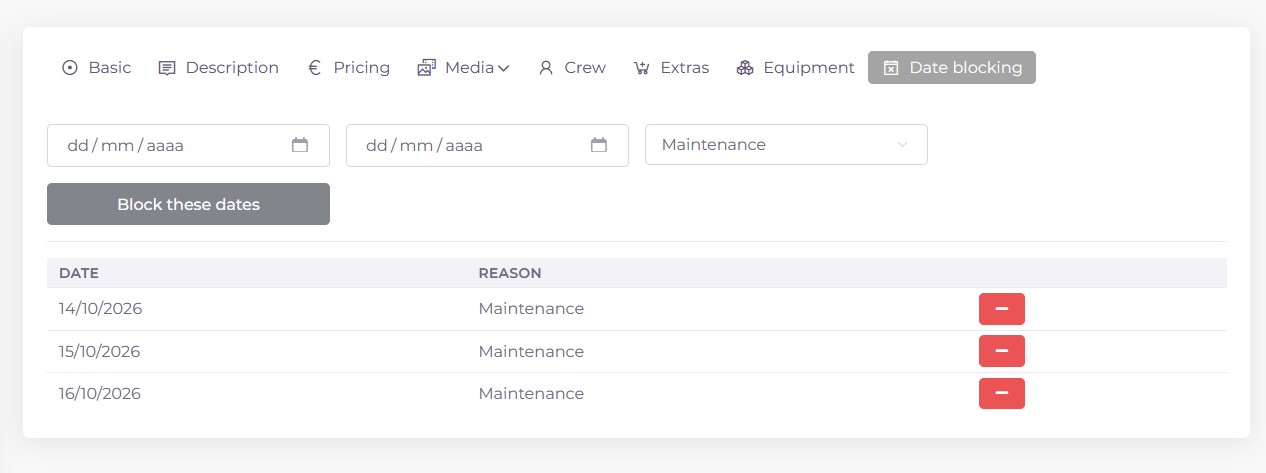
Figure 7f: Screenshot of the Date Blocking tab when editing a boat in Kpitanea.
Agencies
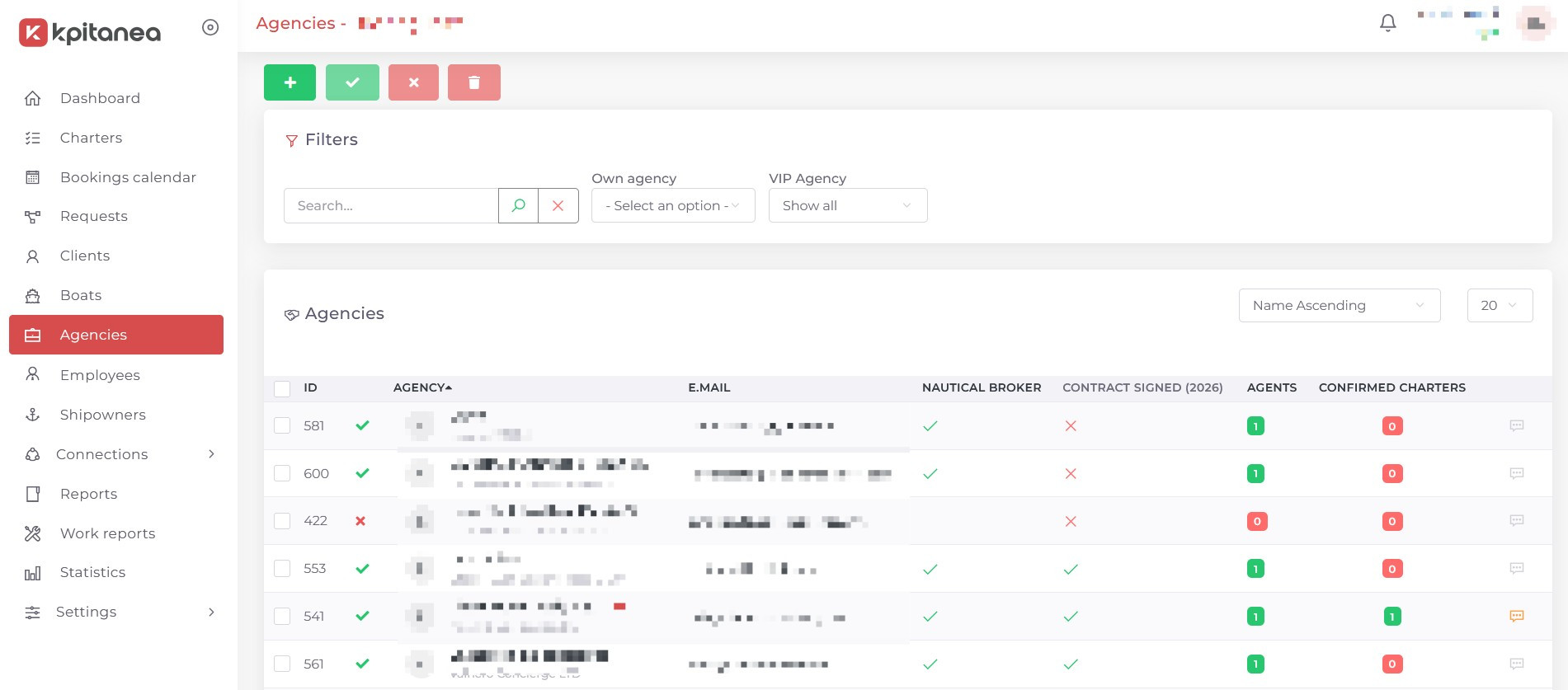
Figure 8: Screenshot of the Kpitanea agencies page.
The Agencies module is where you manage your partners and resellers. Adding agencies is simple and lets you give them limited access to your system, with the option of allowing direct bookings if you wish.
To create a new Agency, click the + button and fill in its details:
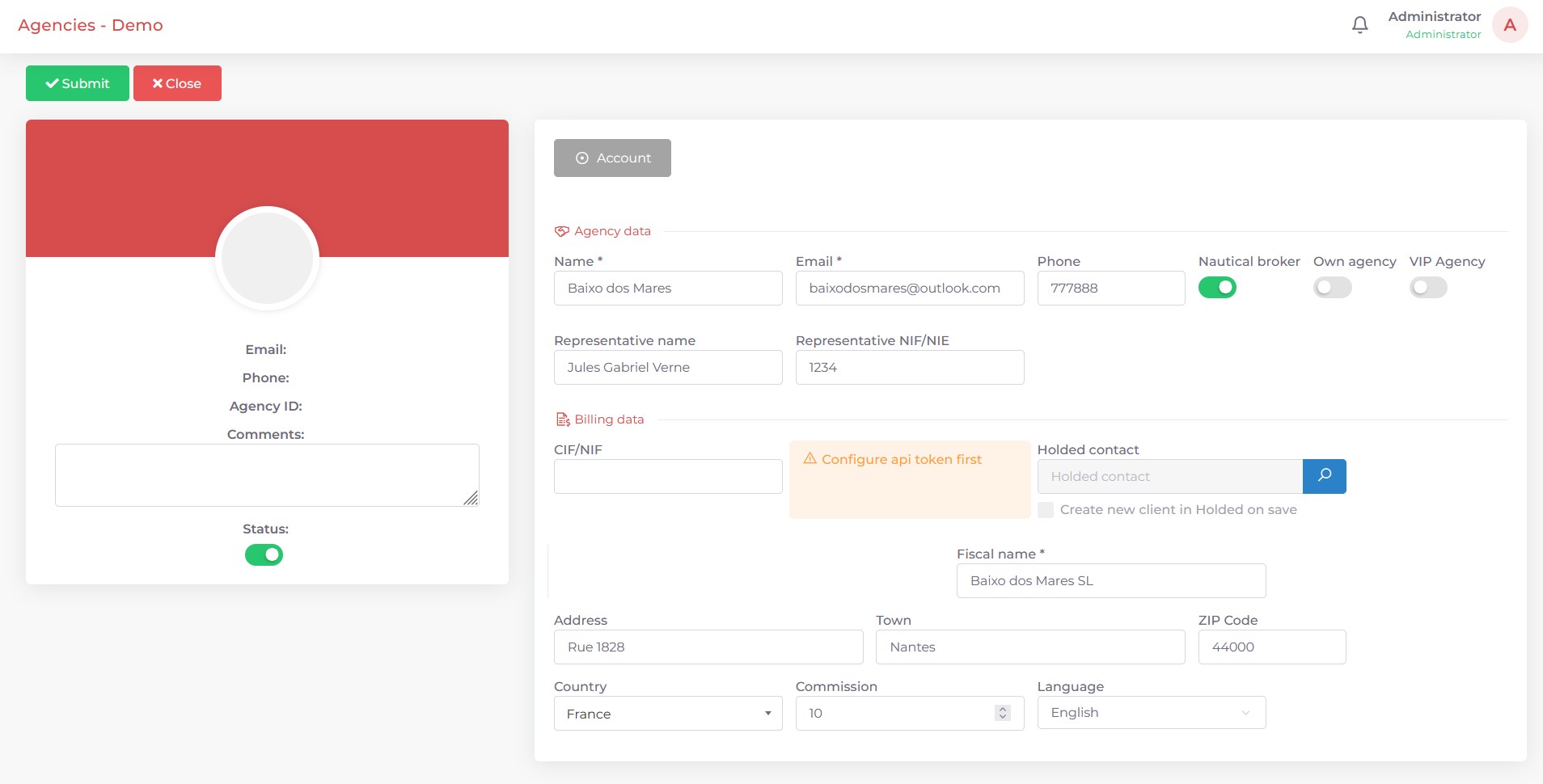
Figure 8a: Screenshot of the agency creation page in Kpitanea.
If you activate the Holded add-on, you can connect Kpitanea to your Holded account and automatically synchronise your clients, or create them in Holded as you save them in Kpitanea.
Click the Submit button once you have filled in the details. Two new tabs will appear: Agents and Contract 1.
First, however, you need to activate the Main agent. Open the ACTIONS drop-down menu and select the "Reset password" 2 option. A confirmation email will be sent to the main agent.
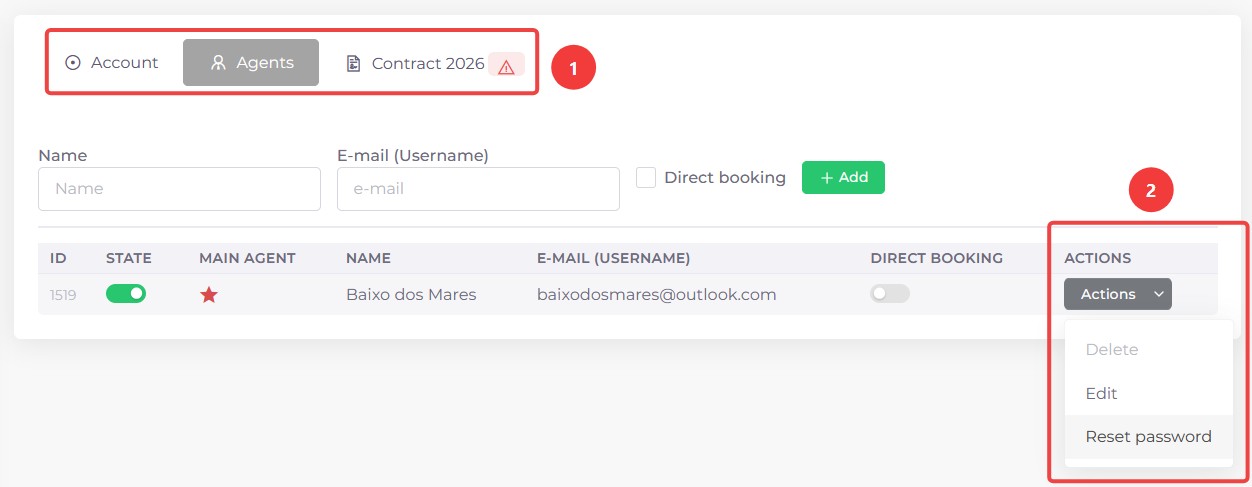
Figure 8b: Screenshot of the agency creation page in Kpitanea.
The agent will receive an email like the one shown below. Clicking the "HERE" link 1 takes them to a login page, where they must enter the temporary credentials included in the email 2.
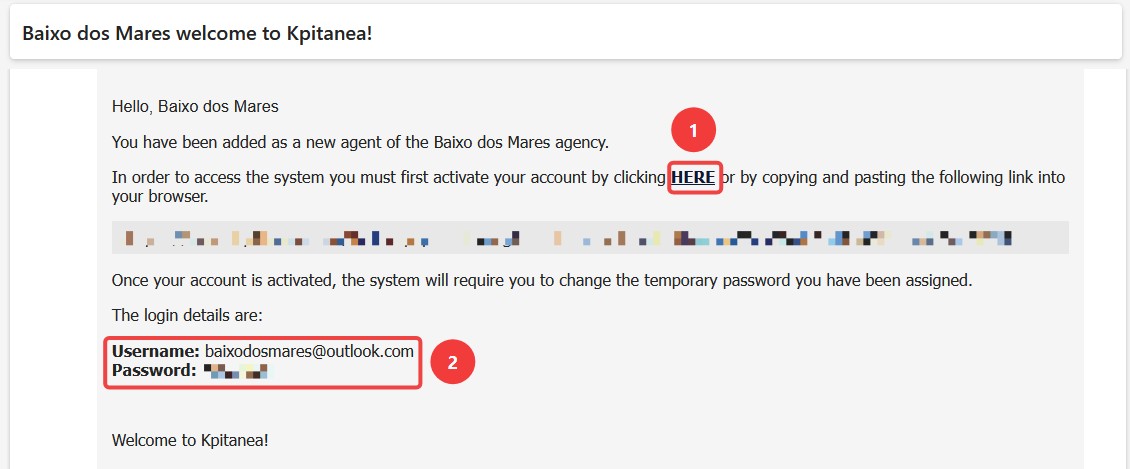
Figure 8c: Screenshot of the Kpitanea confirmation email for agencies.
After logging in with the temporary credentials, the new user will be prompted to reset their password:
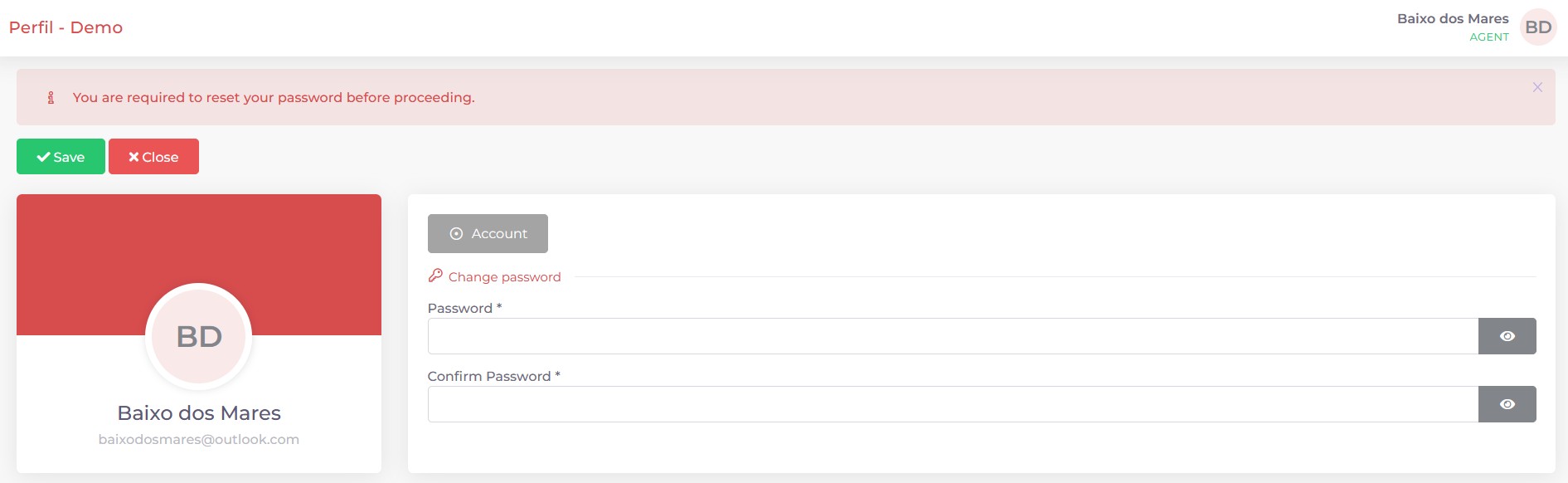
Figure 8d: Screenshot of the password reset screen in Kpitanea.
Before the new agent can start working, they must sign the contract. An alert will be displayed on the dashboard until it has been signed:
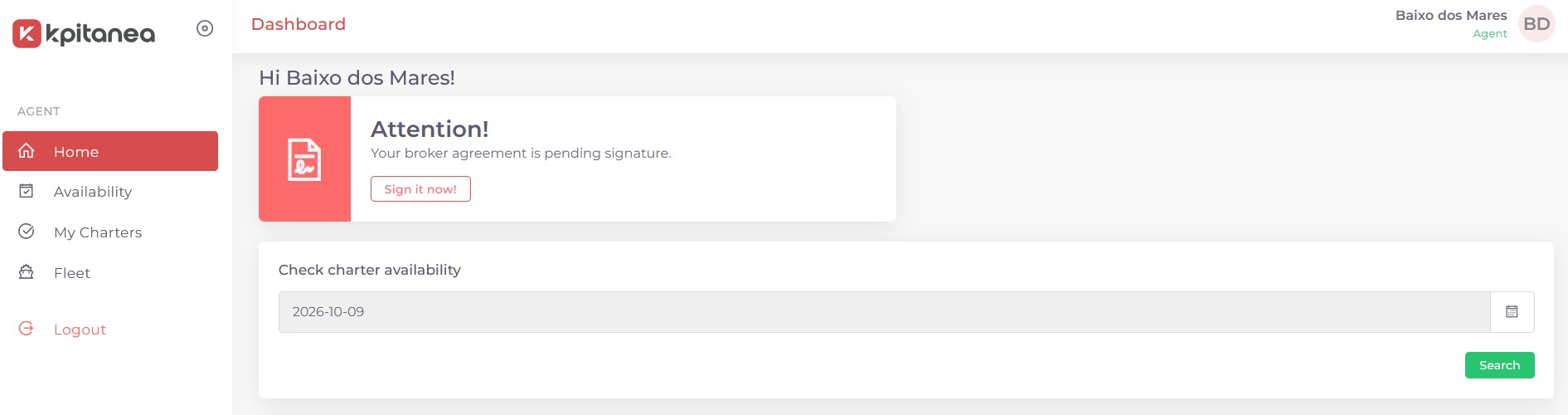
Figure 8e: Screenshot of the broker agreement alert in Kpitanea.
Once they click Sign it now!, they will need to fill in all the required information and sign the contract in the signature area at the bottom of the page, using either a finger or a mouse:
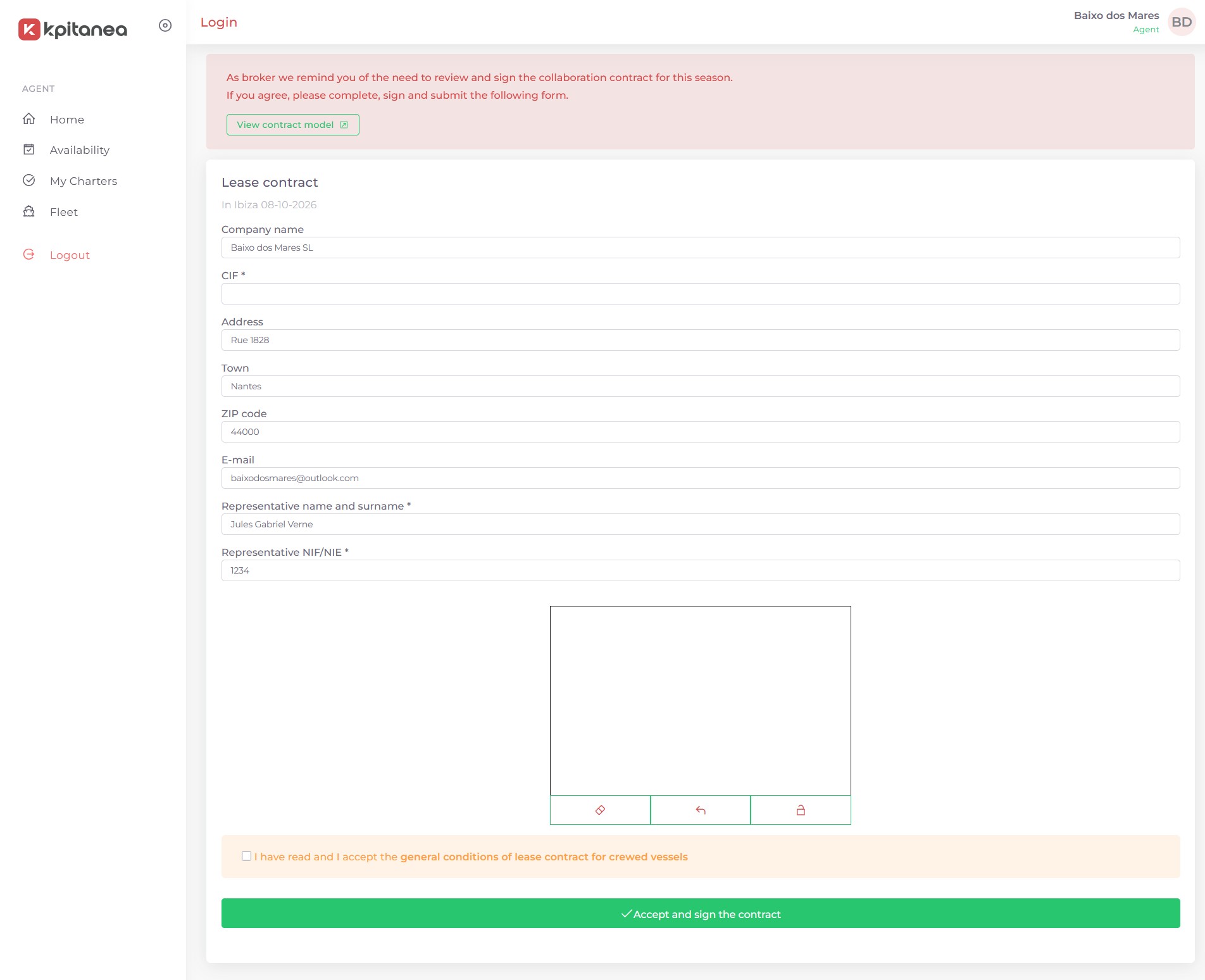
Figure 8f: Screenshot of the broker agreement screen in Kpitanea.
The agency is now ready to operate.
Employees
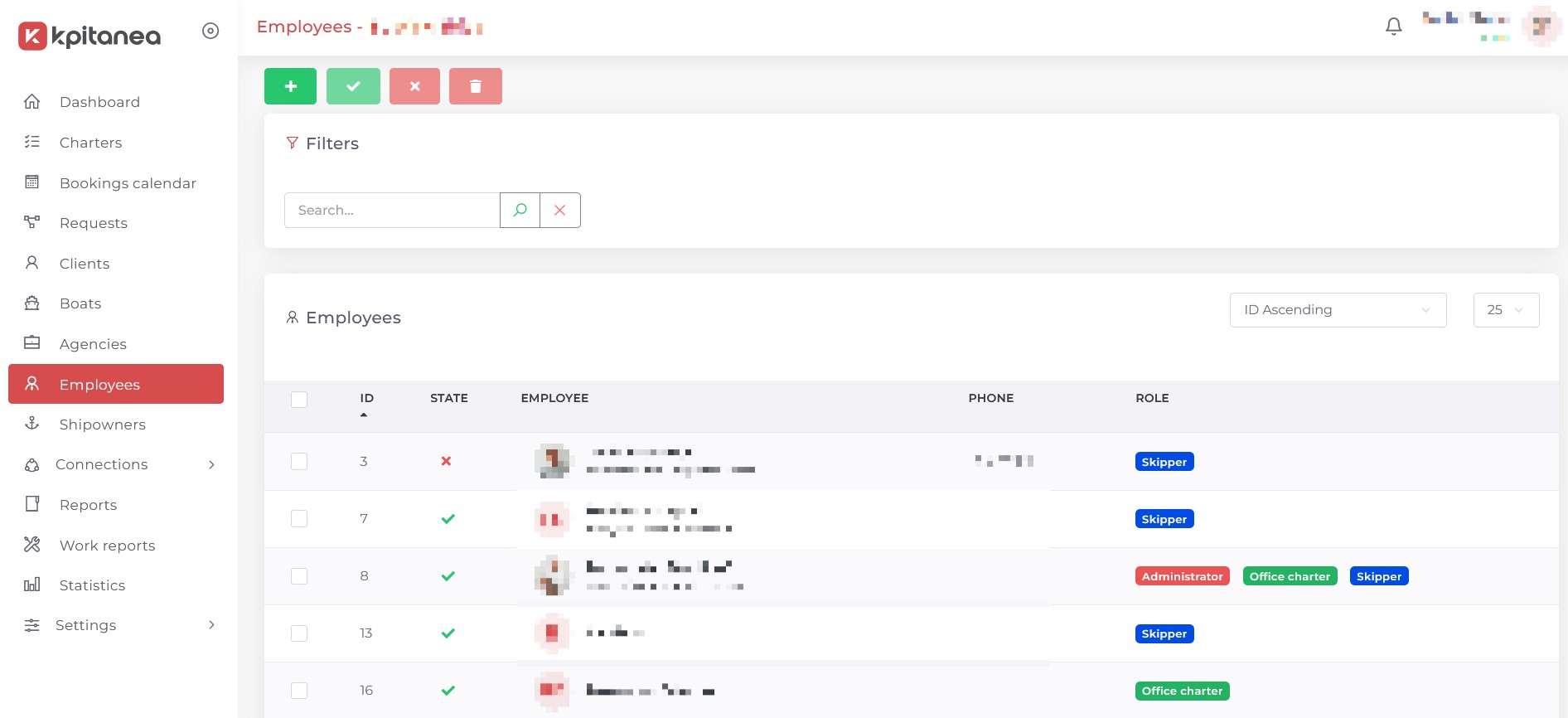
Figure 9: Screenshot of the Kpitanea employees page.
The Employees module lets you add internal staff users with the following roles:
- Administrator
- Office charter
- Crew
- Mechanic
- Skipper
- Cleaner
- Office sales
Each role has its own dashboard view. For example, the Administrator role can view and edit everything in Kpitanea, whereas the Office charter role can only view boat availability and create charters, and cannot change the configuration.
The other roles (Crew, Mechanic, Skipper, Cleaner and Office sales) also have their own specific permissions.
Employees are created in much the same way as agencies:
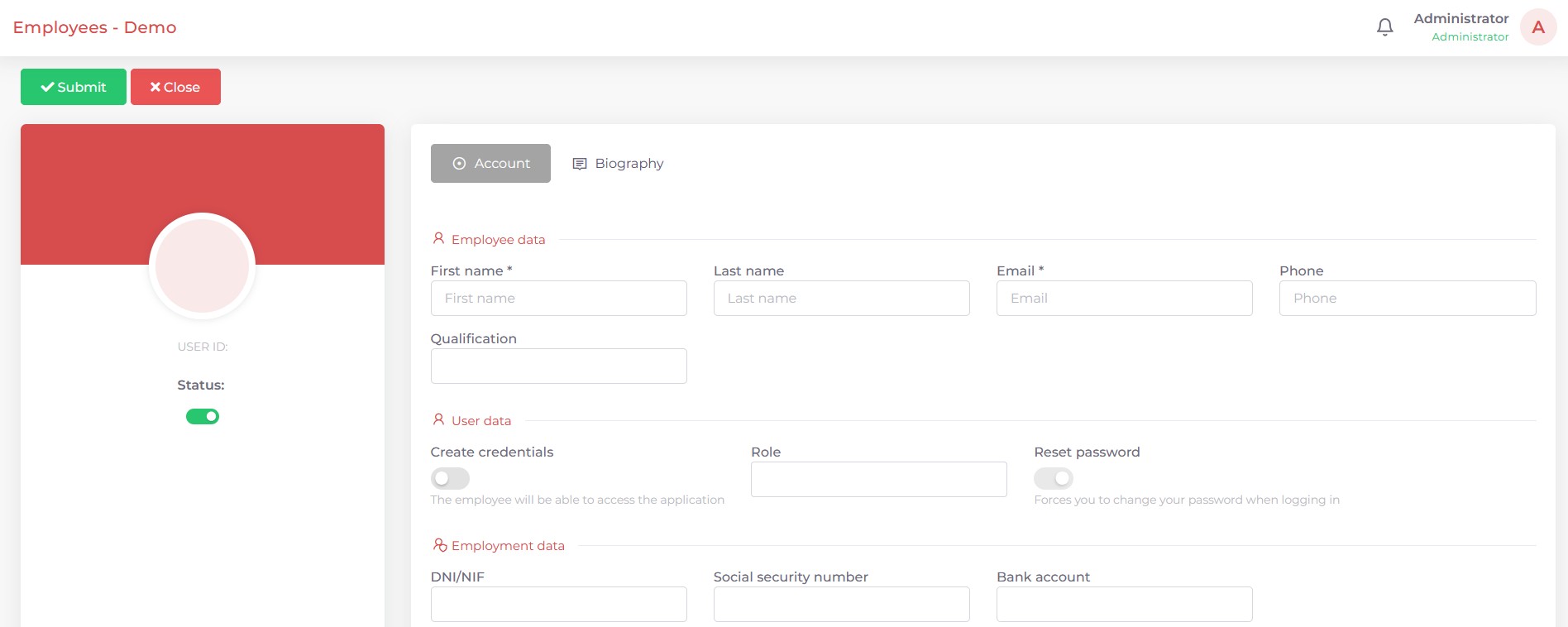
Figure 9a: Screenshot of the employee creation page in Kpitanea.
By default, the Reset password switch is enabled, so the new user will receive a confirmation email with temporary credentials and will be prompted to set a new password before their account is activated.
The screenshot below shows the dashboard as seen by an Office charter employee:
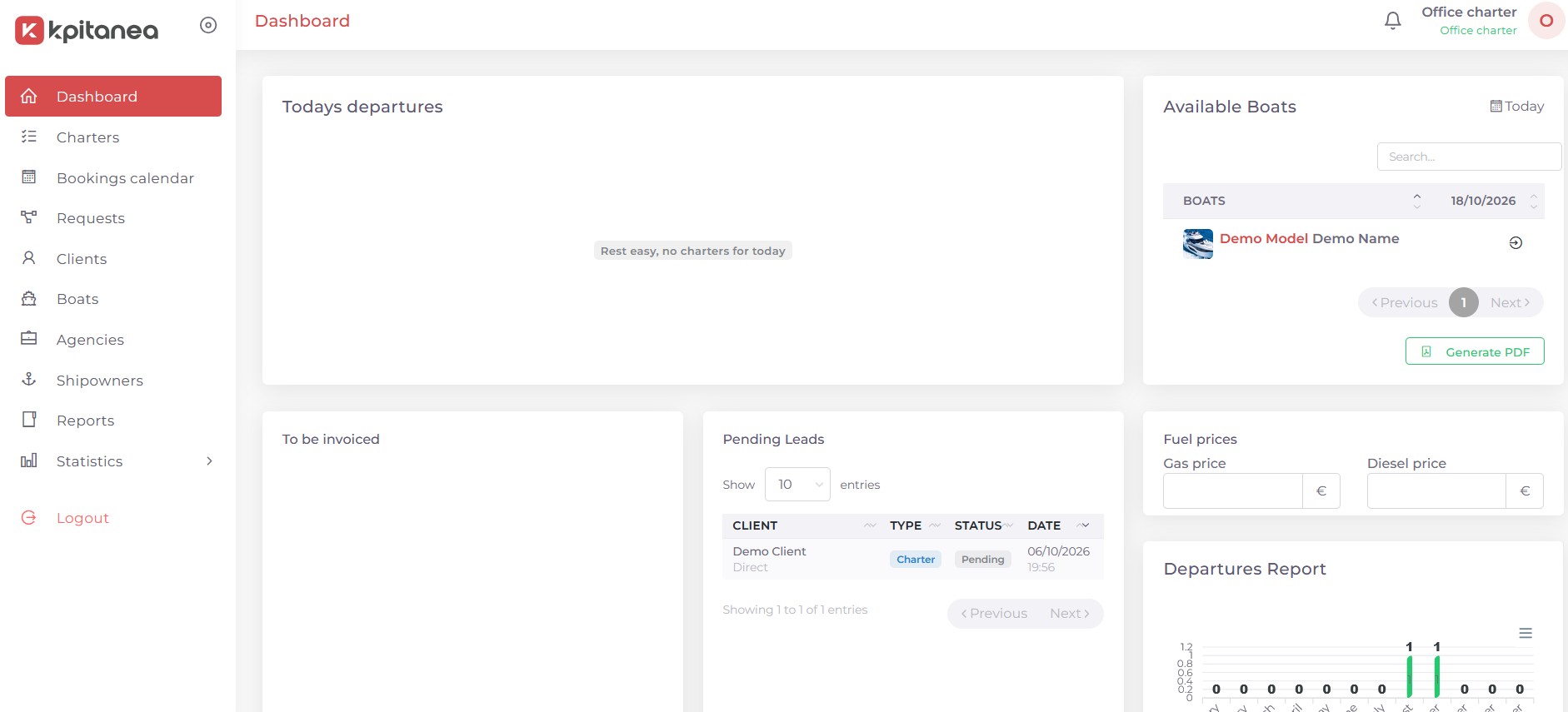
Figure 9b: Screenshot of the employee dashboard in Kpitanea.
Shipowners
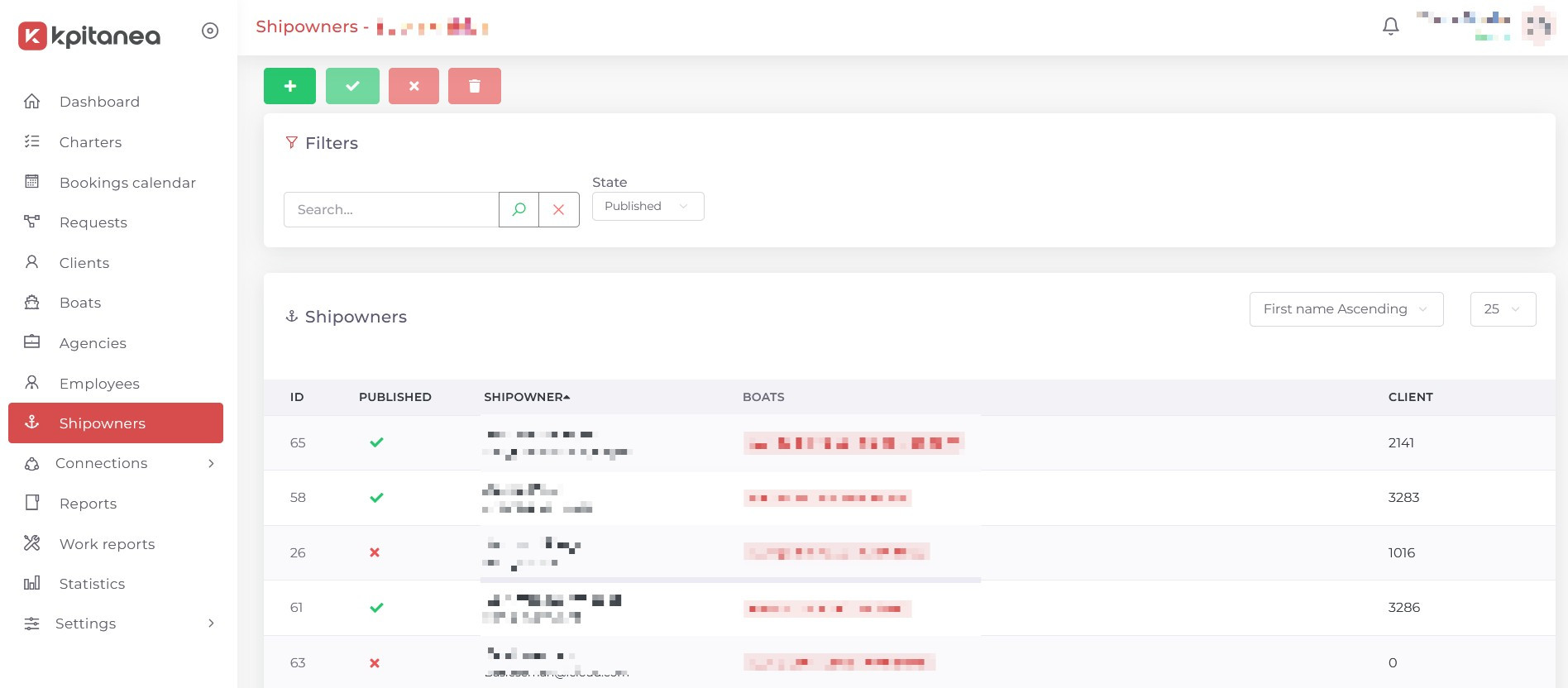
Figure 10: Screenshot of the Kpitanea shipowners page.
The Shipowners module lets you register the owners of your boats, so that they can access your Kpitanea instance and view their boats' availability in real time.
Shipowners are created in the same way as Agents and Employees. To assign a Shipowner to a boat once the shipowner has been created, edit their profile, find the vessel in the Boats tab and tick the corresponding box:
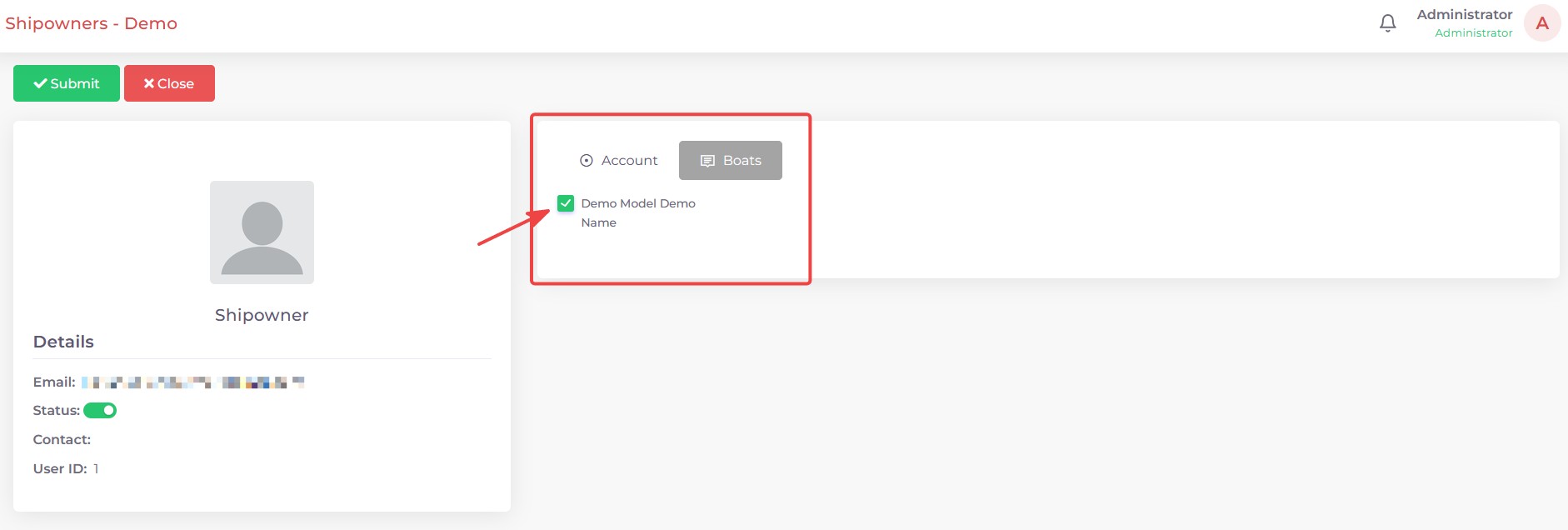
Figure 10a: Screenshot of the Boats tab for shipowners in Kpitanea.
When they log in, Shipowners have access to a single calendar view showing the availability of their boat(s):
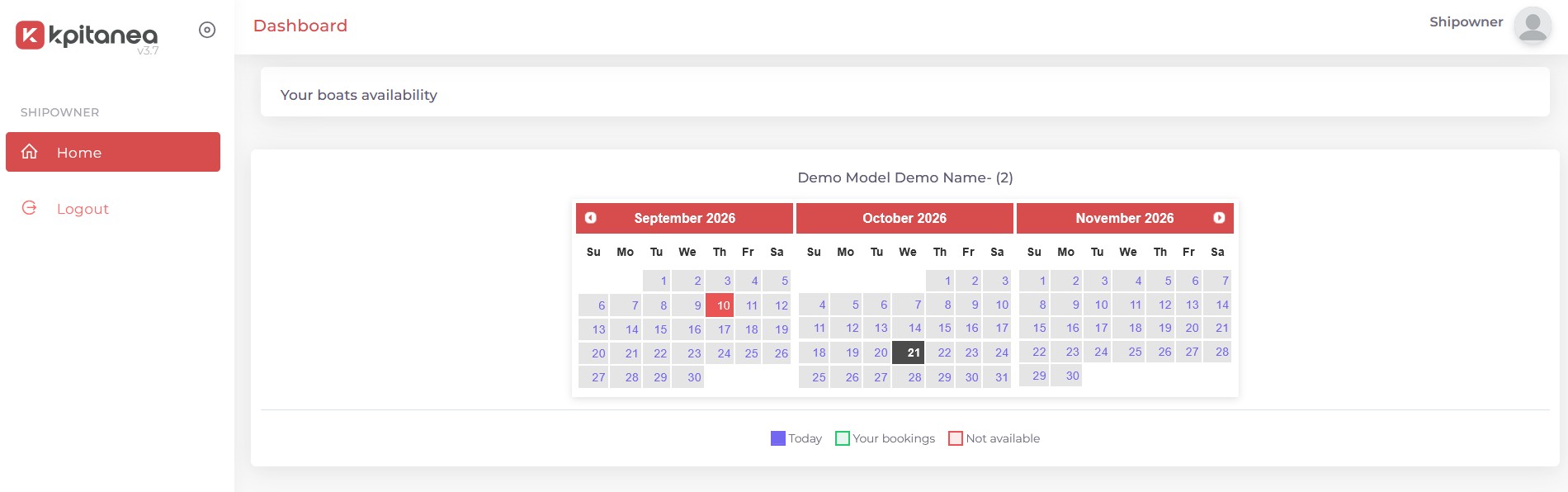
Figure 10b: Screenshot of the shipowner view in Kpitanea.
Connections
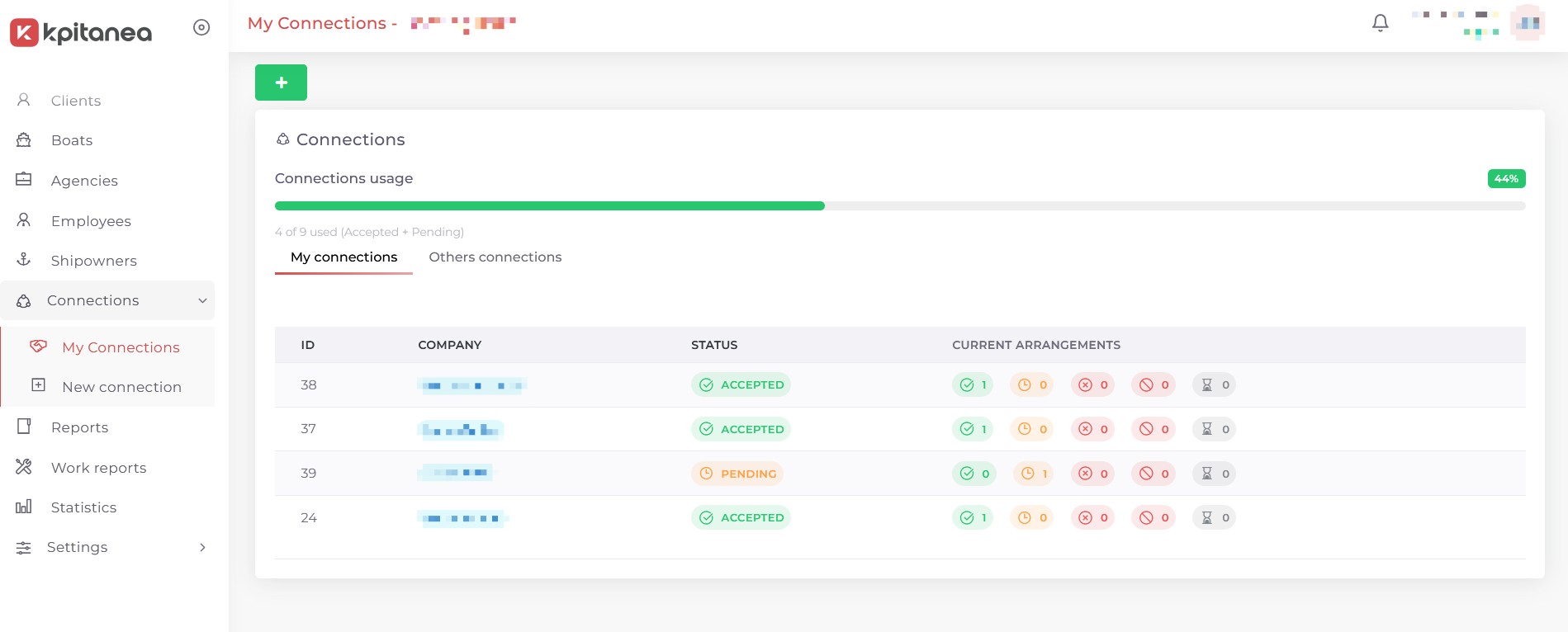
Figure 11: Screenshot of the Kpitanea connections page.
The Connections module is Kpitanea's most powerful feature. It allows you to share your entire fleet (or selected boats only) on our marketplace, where you can make agreements with other Kpitanea users so that they can resell your vessels.
It also works the other way round: you can make agreements with other Kpitanea users to resell their boats. If you want to display other companies' boats on your website and take direct bookings for them, the Connections module is the place to start.
You can enable or disable the Connections feature in Settings → General Settings → Connections.
To create a new agreement, go to Connections → New Connection. You will see a list of the Kpitanea clients currently sharing their boats on our marketplace. Click the View Fleet button 1 to see their shared boats, and Connect 2 to send a proposal:
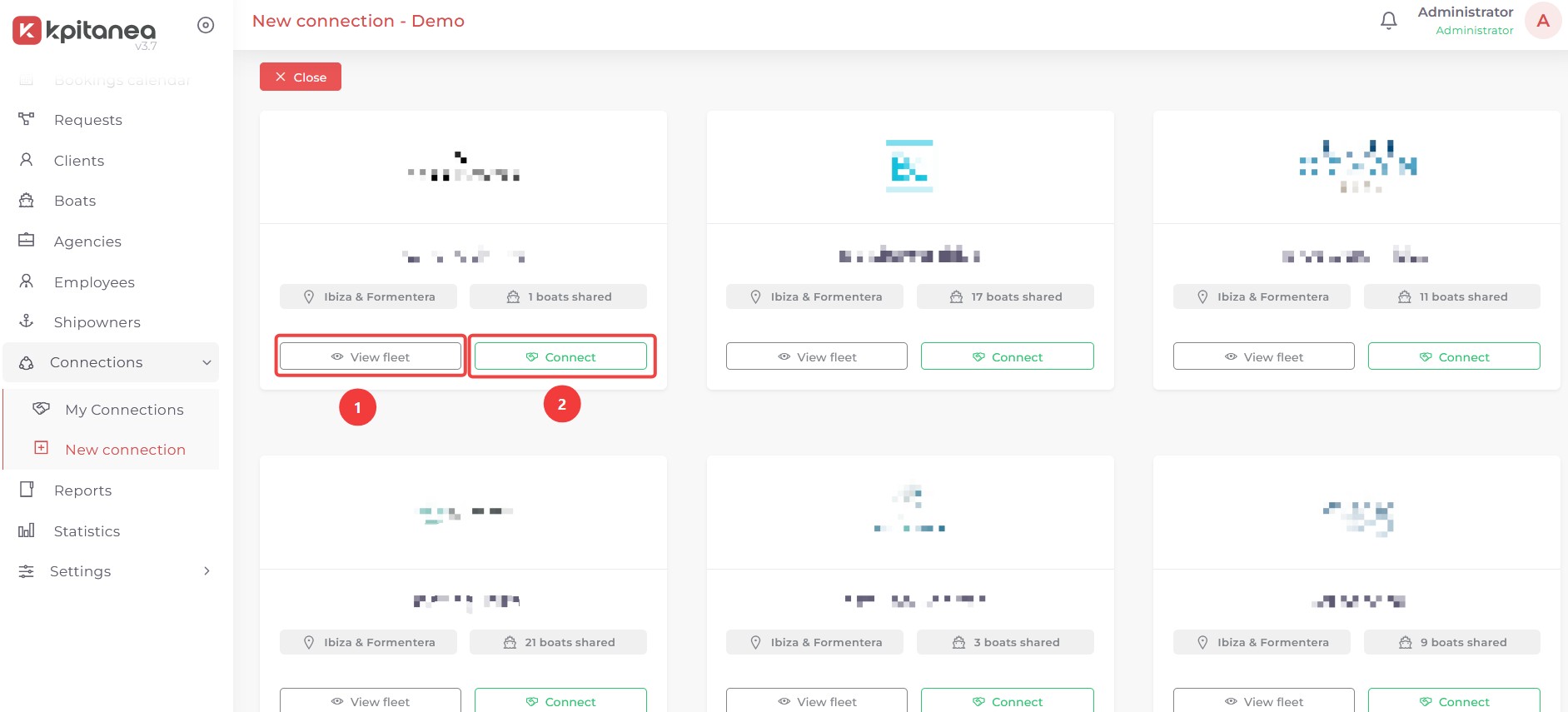
Figure 11a: Screenshot of the Kpitanea new connection page.
When you create a new connection, a step-by-step form will appear in which you fill in all the key details of the agreement. Once you send it, the provider will receive a notification and an email, and will be able to accept or reject it. When you share your boats on the marketplace, the process is the same, but the other way round.
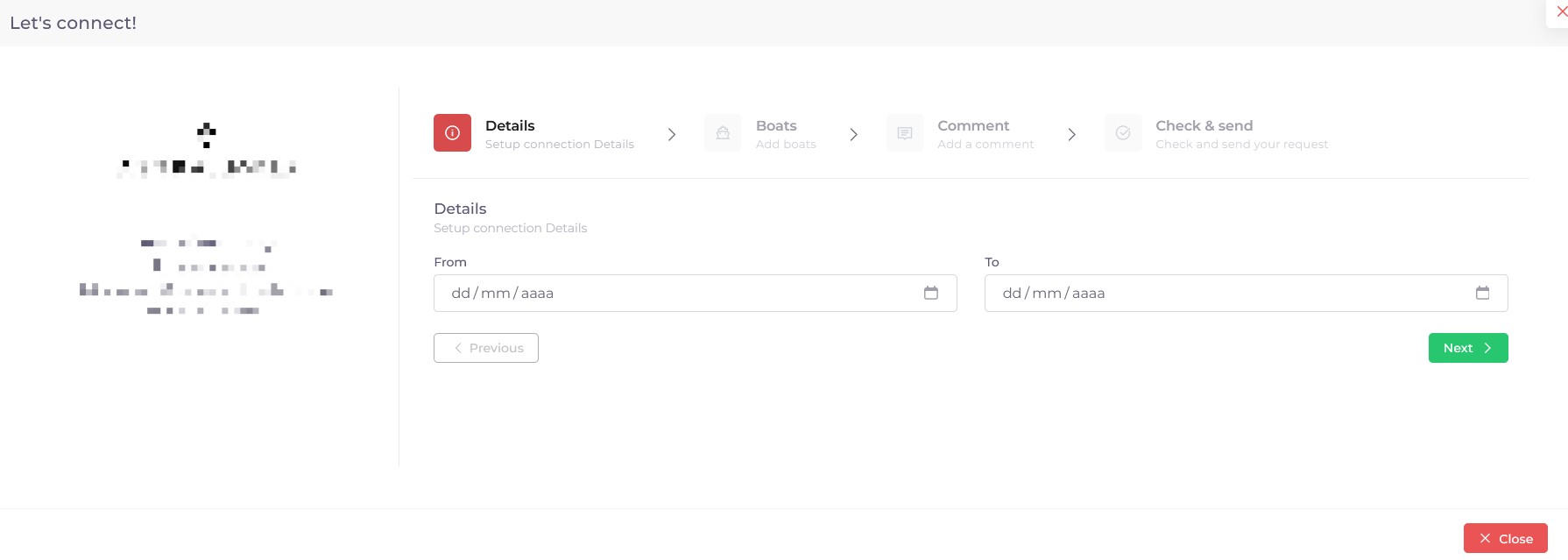
Figure 11b: Screenshot of the Kpitanea connection form.
Go to Connections → My Connections to manage your existing connections with other Kpitanea users.
Reports
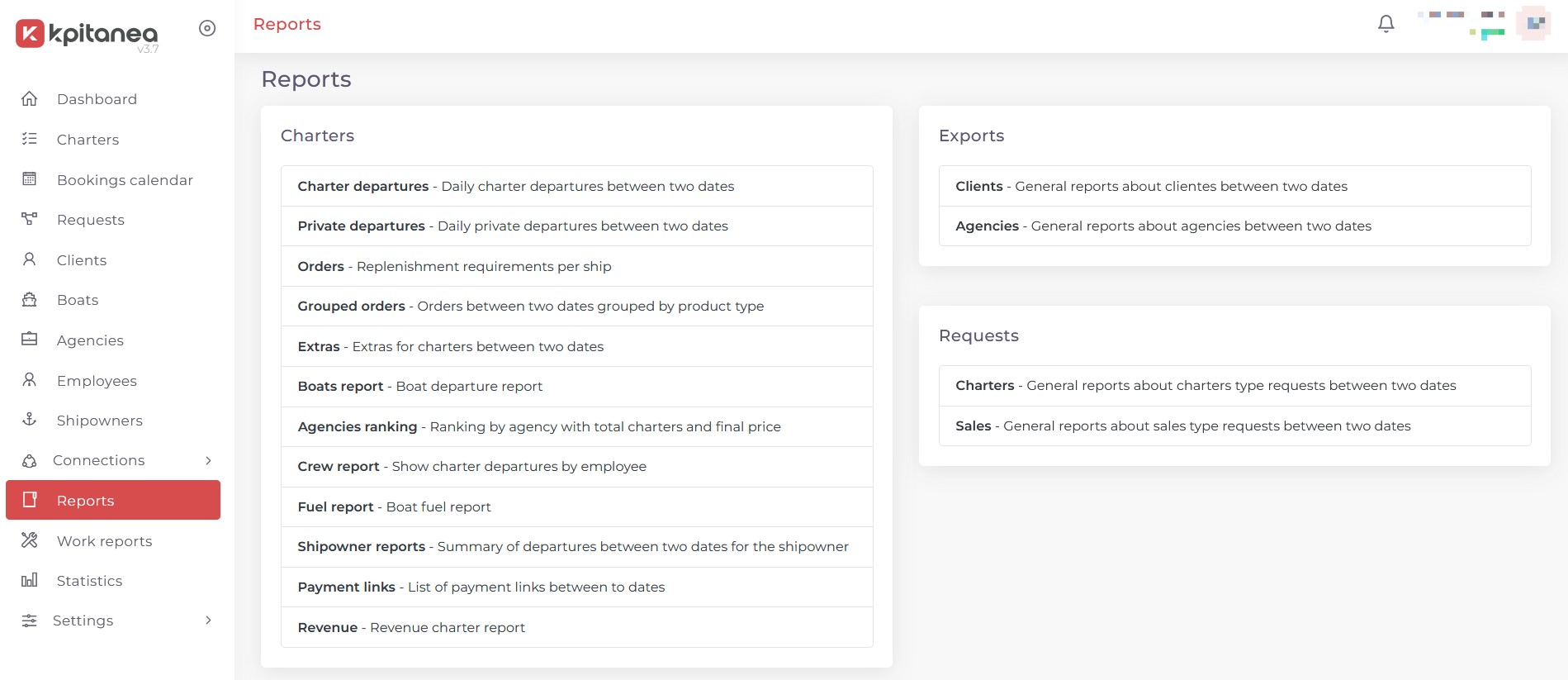
Figure 12: Screenshot of the Kpitanea reports page.
From the Reports module, you can extract a wide range of useful information about your operations in Kpitanea. Select a report type from the available options and a screen will appear where you can filter the data stored in your database by date. Once filtered, you can download the report in various formats (CSV, PDF, HTML), copy it to your clipboard or print it directly:
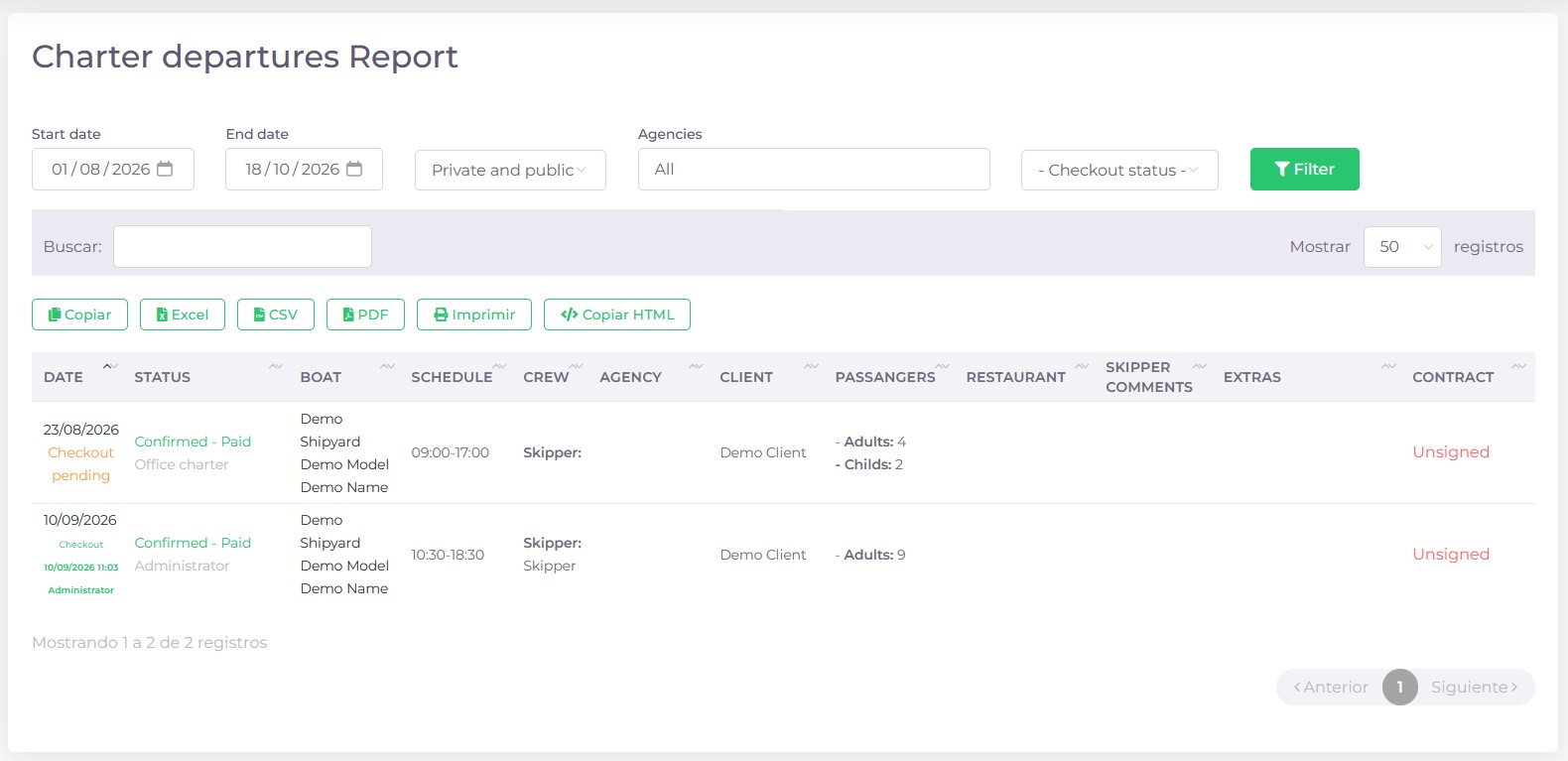
Figure 12a: Example of a report in Kpitanea.
Work Reports
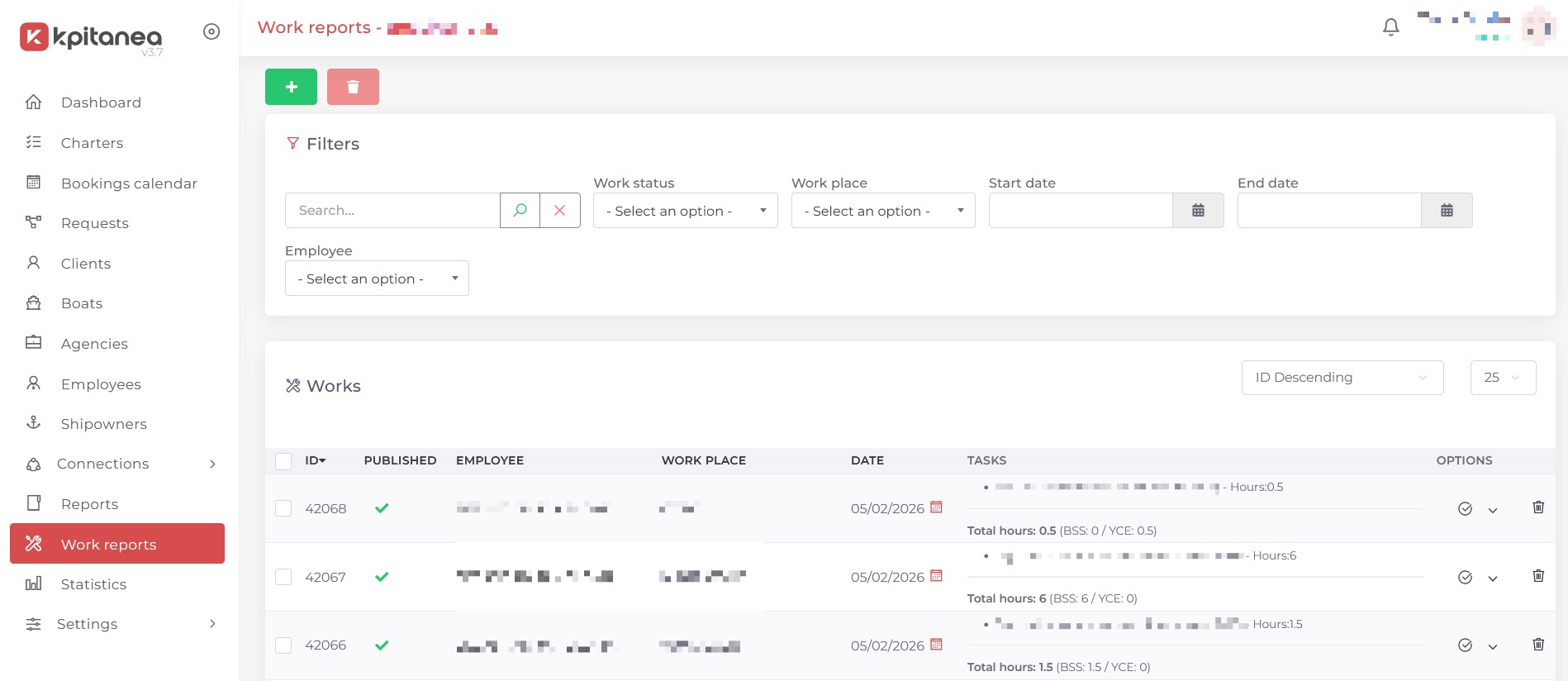
Figure 13: Screenshot of the Kpitanea work reports page.
Available as a free add-on, the Work reports module provides a simple time-tracking tool within your Kpitanea instance. You can assign tasks to your staff and track the time spent on each one.
Contact support@kpitanea.com to enable this add-on.
Statistics
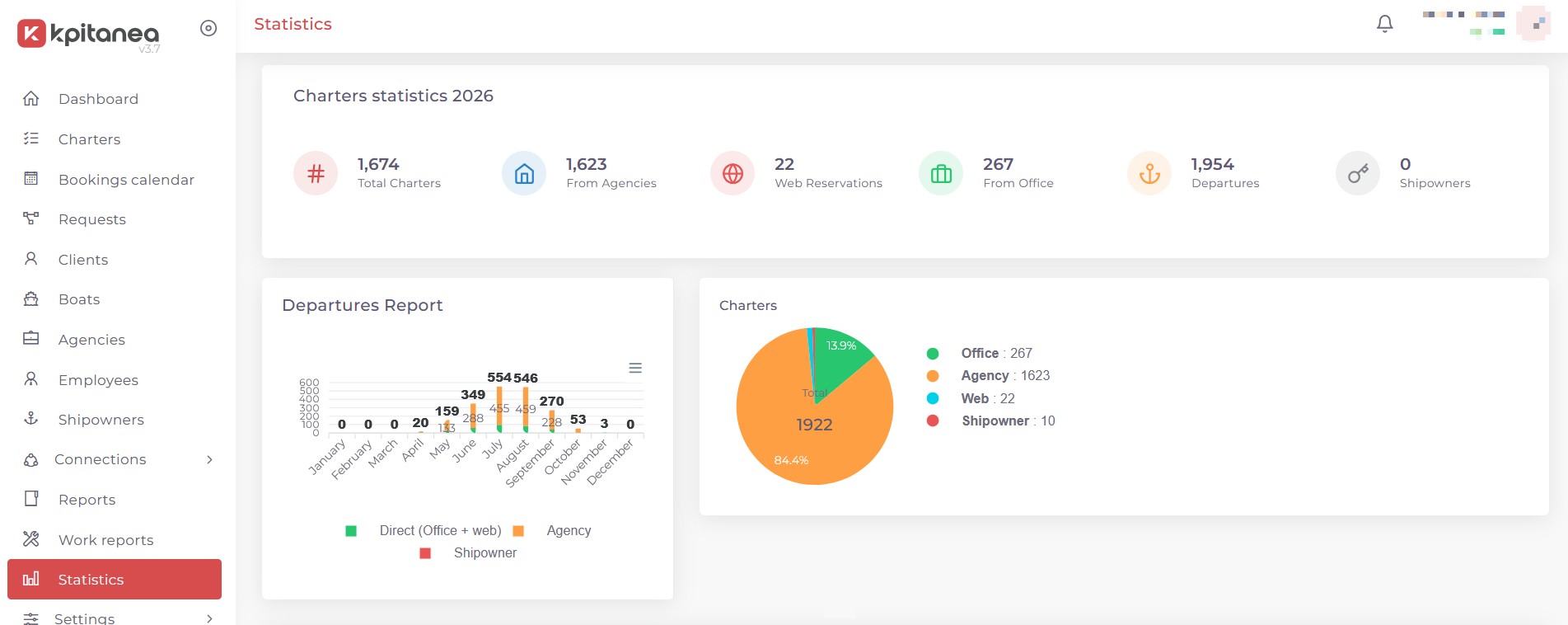
Figure 14: Screenshot of the Kpitanea statistics page.
Use the Statistics module to get a clear overview of your operations. From here, you can view your total charters, a quick departures report, booking sources and more.
Settings
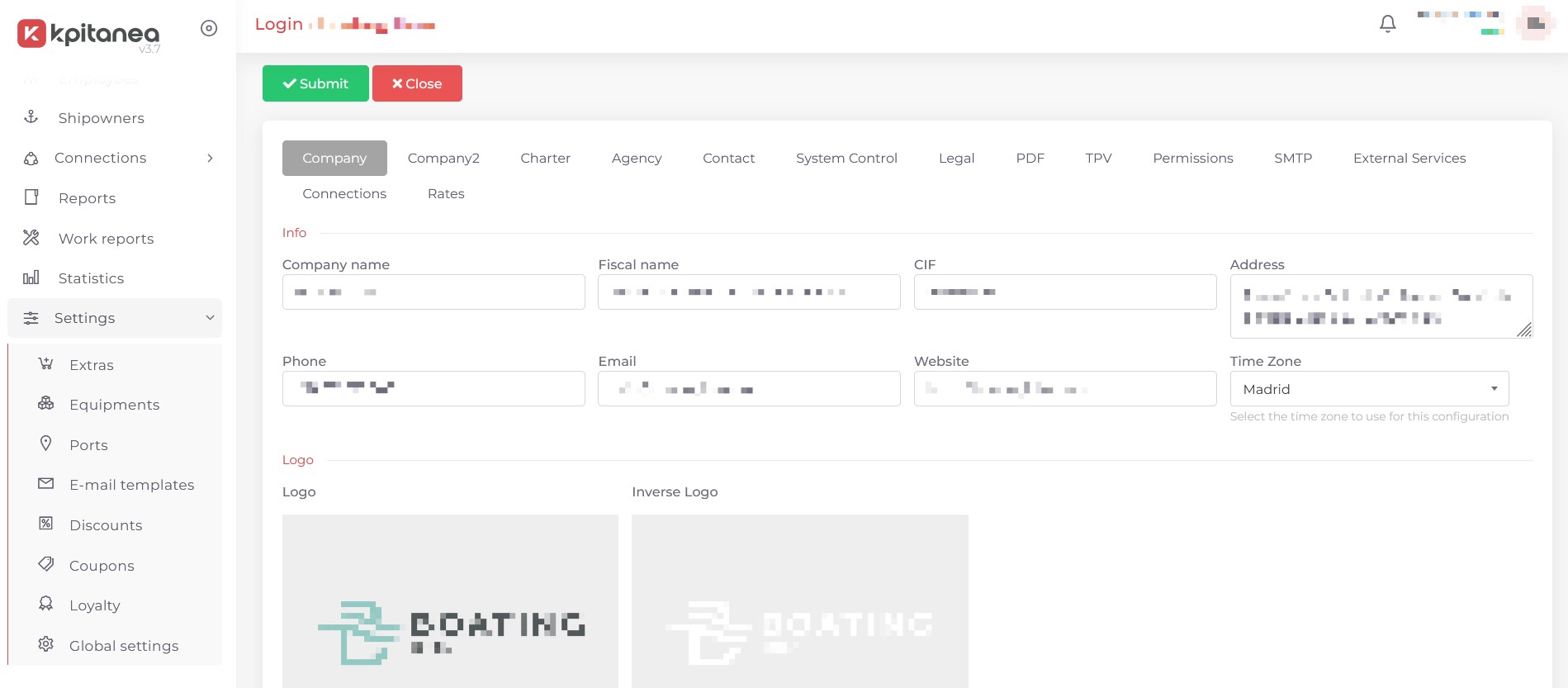
Figure 15: Screenshot of the Kpitanea settings page.
The Settings module contains several sections for configuring and fine-tuning your Kpitanea instance and its modules. Click the corresponding sub-item to access each one:
| Extras | Add and manage the extras that will be available for your charters. |
| Equipment | Add and manage equipment items for your boats. |
| Discounts | Add and manage discounts for your clients. |
| Coupons | Add and manage coupon codes for your partners. |
| Loyalty | Configure the loyalty perks for your customers. |
| Global Settings | Configure defaults, integrations and general information. |
FAQ
Frequently asked questions about the Kpitanea booking system for boat charter agencies and brokers.
Changelog
See what has been added, changed, fixed, improved or updated in the latest versions.
Version 3.7 (1 September 2026)
- Added Option to charge the end customer a bank fee.
- Added New image gallery for boats.
- Added New image cropping tool.
Version 3.0 (6 June 2026)
- Added New Requests (leads) section to centralise opportunities.
- Added New weekly charter calendar.
- Added Integrations with MMK and Holded.
- Fixed Minor bugs in the responsive layout.
- Updated Improvements to the creation and management of multiple charters.
- Updated Improvements to boat forms.
- Updated Improved port view: new country field and location map.